Assignments and B2B Workflows
After adding a rep, assign the customers, companies, or locations they should manage. Assignments control which buyers the rep can see and order for on the storefront.
In this guide:
- Assigning Sales Representatives to Customers
- Managing Customer Relationships
- Sales Representative Access and Responsibilities
- Company and Location Mapping
Assigning Sales Representatives to Customers
Open the Assignments page: from the rep's detail page, click Assignment to open Assignments — [rep name] (for example, Assignments - Joy Toor).
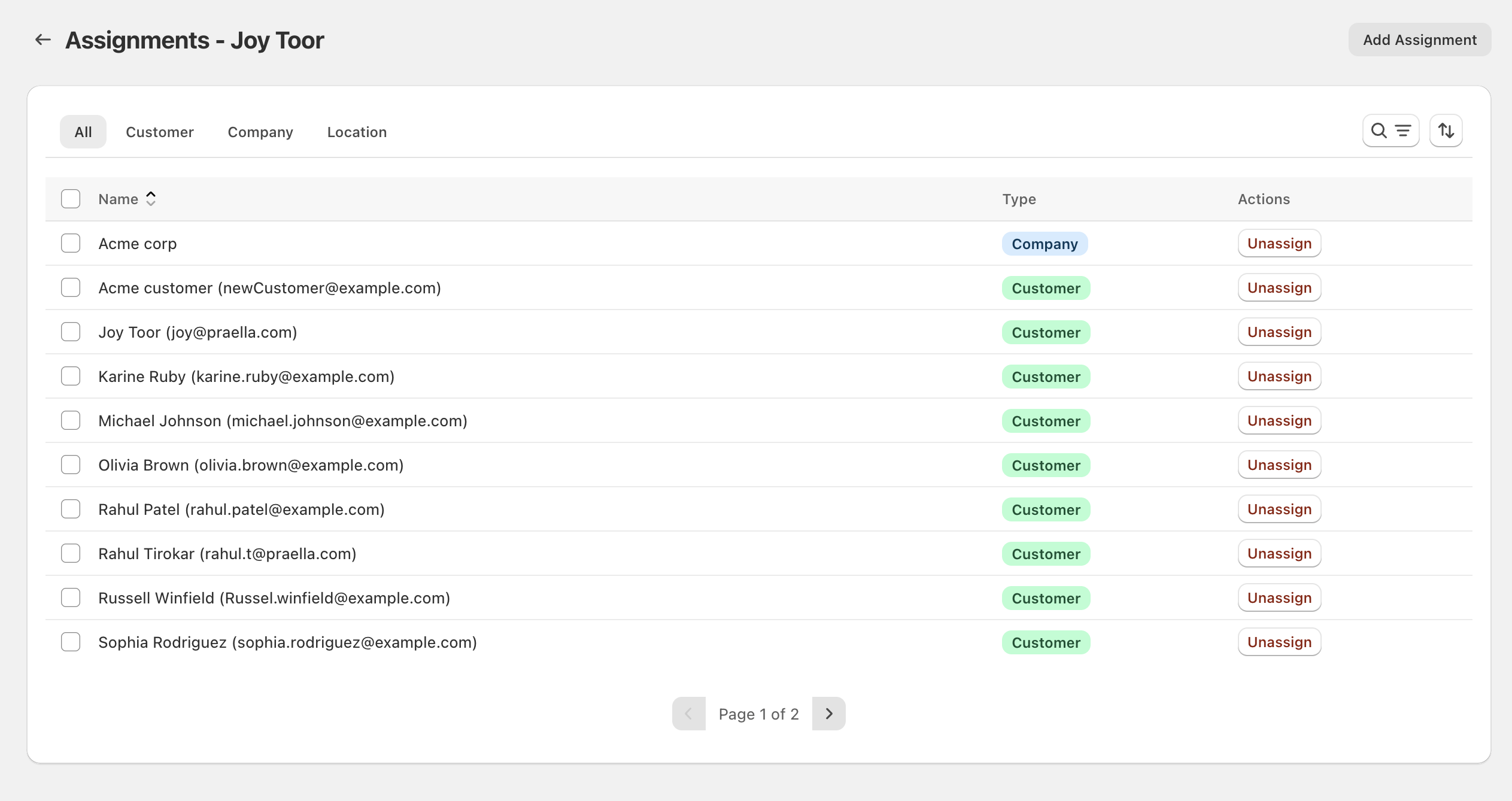
The assignment list shows Name and Type columns, with All, Customer, Company, and Location tabs to filter by assignment type, plus search and sort controls and pagination (for example, Page 1 of 2).
Add an Assignment
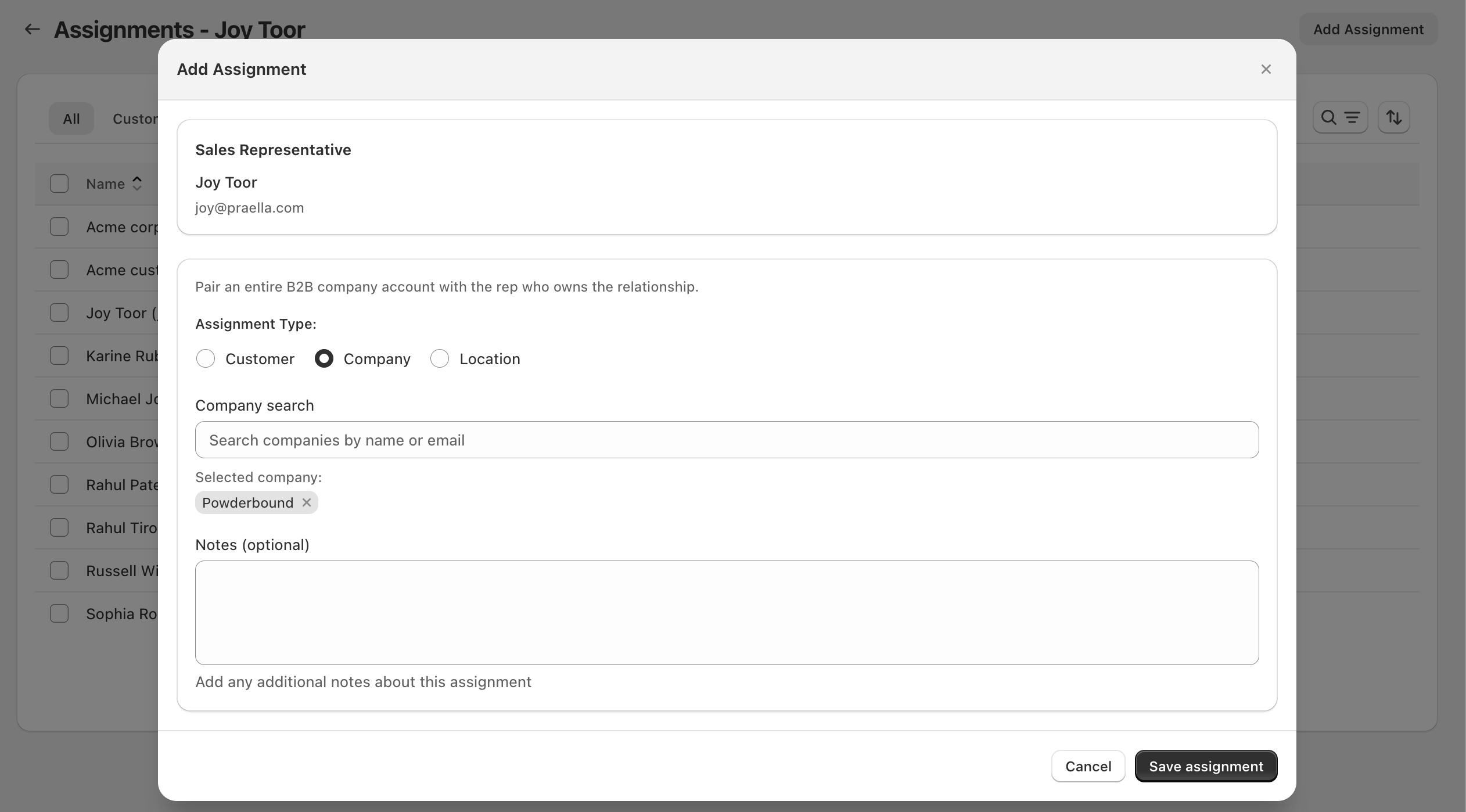
- On the assignments page, click Add Assignment (top right) to open the Add Assignment dialog.
- Confirm the correct rep is shown at the top, in a Sales Representative card with their name and email.
- Choose an Assignment Type: Customer, Company, or Location. Selecting Company shows the hint Pair an entire B2B company account with the rep who owns the relationship.
- Search for the entity by name or email in the matching search field (for example, Company search with "Search companies by name or email"), and select it — the choice appears as a removable chip under Selected company: (or the equivalent for Customer/Location).
- Optionally add Notes for internal reference, then click Save assignment.
| Type | Description |
|---|---|
| Customer | Connect a specific buyer to this rep |
| Company | Pair the rep with an entire B2B company |
| Location | Assign the rep to one company location |
The assignments list refreshes with the new row once saved.
Managing Customer Relationships
Each customer-type row in the assignments list shows the buyer's name and email together (for example, Rahul Patel (rahul.patel@example.com)), tagged with a green Customer badge. Company-type rows carry a blue Company badge instead. Use Unassign on a single row, or select checkboxes and choose Unassign from the bulk actions bar, to remove one or more links at once.
Sales Representative Access and Responsibilities
A rep can only see and act on the buyers, companies, and locations reflected in their assignments — a rep without assignments cannot serve specific buyers, even with a valid rep code.
On the storefront, reps:
- Log in through Online Store customer login
- Switch buyer/company via the Customer Account rep menu (when enabled)
- Browse published line sheets and collections
- Place orders for their assigned B2B accounts
- Download exports from Customer Account → View Downloads
If a rep reports they cannot see buyers or orders, verify they are Active and have the correct assignments.
Company and Location Mapping
A Company assignment covers the entire company and, by extension, its locations for reporting purposes, while a Location assignment scopes the rep to just one specific location such as a warehouse or branch. The rep detail page's Assigned Companies and Locations table is the quickest way to review this mapping for a given rep.
Full B2B ordering ability also depends on matching company/location linkage in Shopify B2B itself, not the assignment row alone.