Purchase Order Workflow
In this guide:
- Create Purchase Order
- Update Purchase Order
- Complete Purchase Order
- Generate Purchase Orders from Negative Inventory
Create Purchase Order
- Select Supplier — search and choose a supplier in the Supplier card
- Add Products — use Add products, Add custom product, or (once active) Import products
- Configure Purchase Order Details — set expected date, PO #, currency, payment terms, tags, destination, and addresses
- Review Totals — check the Order Summary — subtotal, tax mode, shipping/handling, discount, and estimated total
- Create Purchase Order — click Create; the new PO opens on its detail page with status Created
See Creating a Purchase Order.
Update Purchase Order
- Edit Products — add, remove, or adjust lines from the detail page's edit mode
- Update Quantities — change ordered quantity on any line not yet fully received
- Modify Shipping Information — update destination, shipping/billing address, shipping carrier, or tracking number
Complete Purchase Order
Receive Inventory
From the PO detail page, click Receive inventory and enter receive/reject quantities for each line. See Receiving Inventory.
Finalize Purchase Order
Click Close purchase order when done, or let the PO close automatically when every line is fully received or rejected.
Inventory Synchronization
Received quantity moves from Incoming into sellable Quantity and On-hand for that SKU and warehouse.
Generate Purchase Orders from Negative Inventory
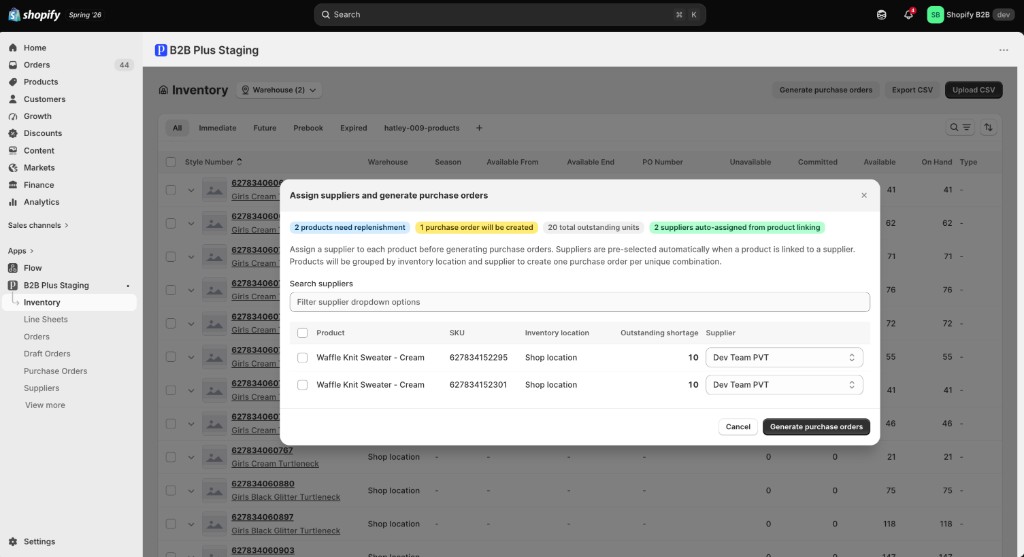
From Inventory in the app, use Generate purchase orders (a secondary action in the page header, alongside Export CSV and Upload CSV) to open the Assign suppliers and generate purchase orders modal.
What the system does
- Scans inventory for SKUs with negative available quantity at each location
- Subtracts quantities already on open POs for the same SKU/location, so it doesn't double-count outstanding orders
- Shows a preview grouped by location with suggested suppliers, pre-filled from product–supplier linking when configured
The modal's summary chips call out, for example, 2 products need replenishment, 1 purchase order will be created, 20 total outstanding units, and 2 suppliers auto-assigned from product linking. A Search suppliers field filters the supplier dropdown options below.
What you do
| Step | Action |
|---|---|
| 1 | Review shortage lines and outstanding quantities — the table lists Product, SKU, Inventory location, and Outstanding shortage per row |
| 2 | Assign a supplier per product using the per-row Supplier dropdown (bulk assign supported via row checkboxes) |
| 3 | Confirm Create purchase orders — the button is labeled Generate purchase orders in the modal |
The system creates one PO per location + supplier group. A success summary links to each new PO, which then appears in the Purchase Orders list with status Created.
Also see Generate Purchase Orders.