Managing Purchase Orders
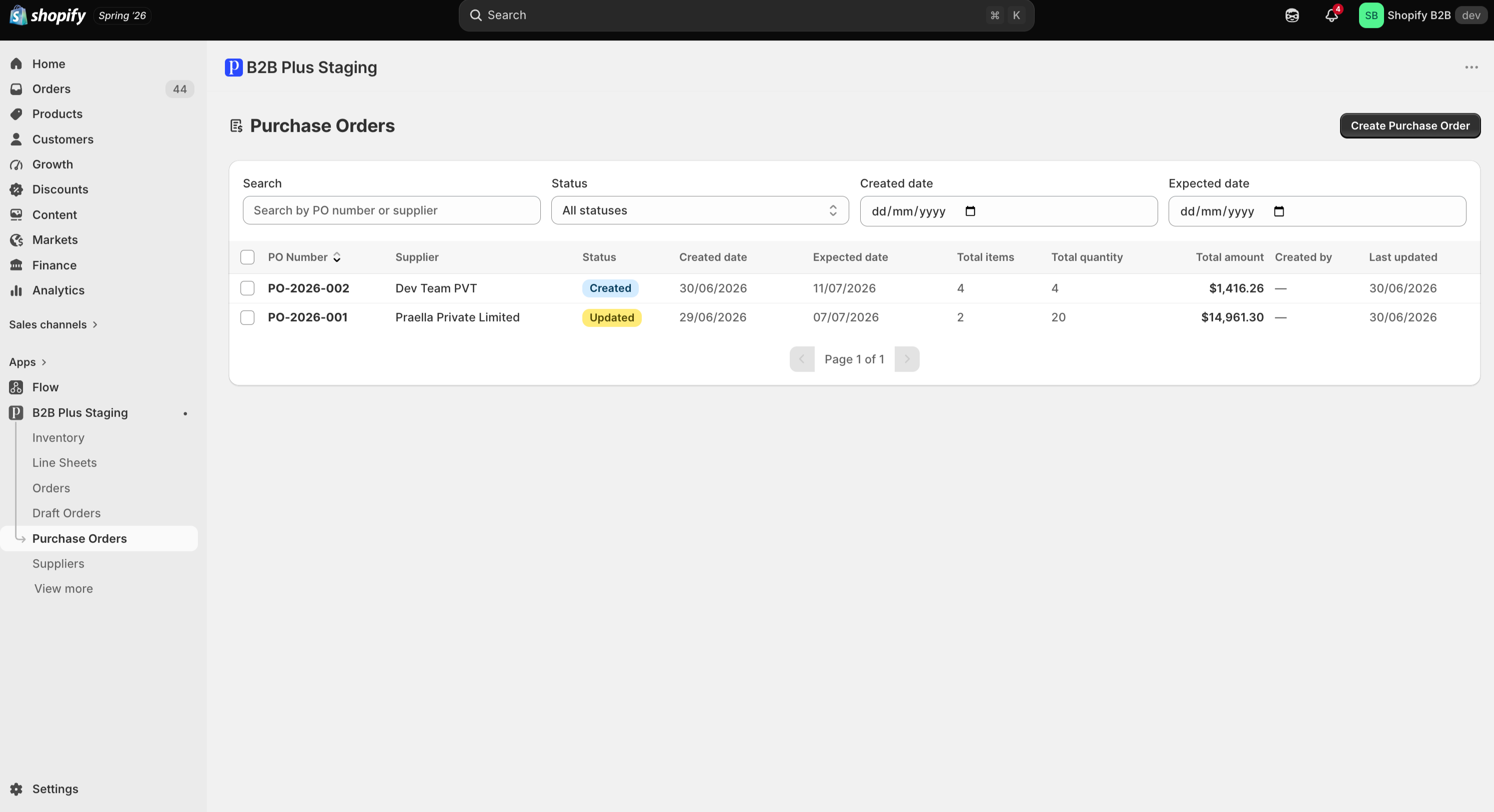
Shopify Admin → Apps → B2B Plus → Purchase Orders is the home screen for all POs, with Create Purchase Order as the primary button in the top-right header.
In this guide:
- Purchase Order List Overview
- Purchase Order Information Displayed
- Purchase Order Status
- Supplier Information
- Total Items and Quantities
- Expected Delivery Date
- Purchase Order Amount
- Created By and Last Updated
Purchase Order List Overview
The list shows one row per PO, with search, status/date filters, and pagination (for example, Page 1 of 1).
Purchase Order Information Displayed
| Column | What it shows |
|---|---|
| PO Number | Unique PO identifier (auto-generated or custom), e.g. PO-2026-001 |
| Supplier | Supplier name at time of PO creation |
| Status | Created, Updated, Partially received, Closed, etc. — shown as a colored badge |
| Created date | When the PO was created |
| Expected date | ETA for delivery, or blank if not set |
| Total items | Number of line items |
| Total quantity | Sum of ordered quantities |
| Total amount | Order total in PO currency |
| Created by | Staff member who authorized the PO (if set) — an em dash when not recorded |
| Last updated | Most recent change |
Purchase Order Status
The Status badge uses the same values as the lifecycle table in Purchase Order Lifecycle — for example, a blue Created badge or a yellow/gold Updated badge, as seen on PO-2026-002 and PO-2026-001 respectively.
Supplier Information
The Supplier column shows the supplier name captured at PO creation time, even if the supplier record is later renamed.
Total Items and Quantities
Total items counts distinct line items on the PO; Total quantity sums the ordered quantity across every line.
Expected Delivery Date
Shown as a date when set on the PO; displayed as a blank/em dash when no expected date was entered.
Purchase Order Amount
Total amount reflects the PO's estimated total, in the currency selected on that PO. See Order Summary.
Created By and Last Updated
Created by records the staff member who authorized the PO when that data is available; Last updated reflects the most recent save, whether from editing, receiving, or closing.