Editing Purchase Orders
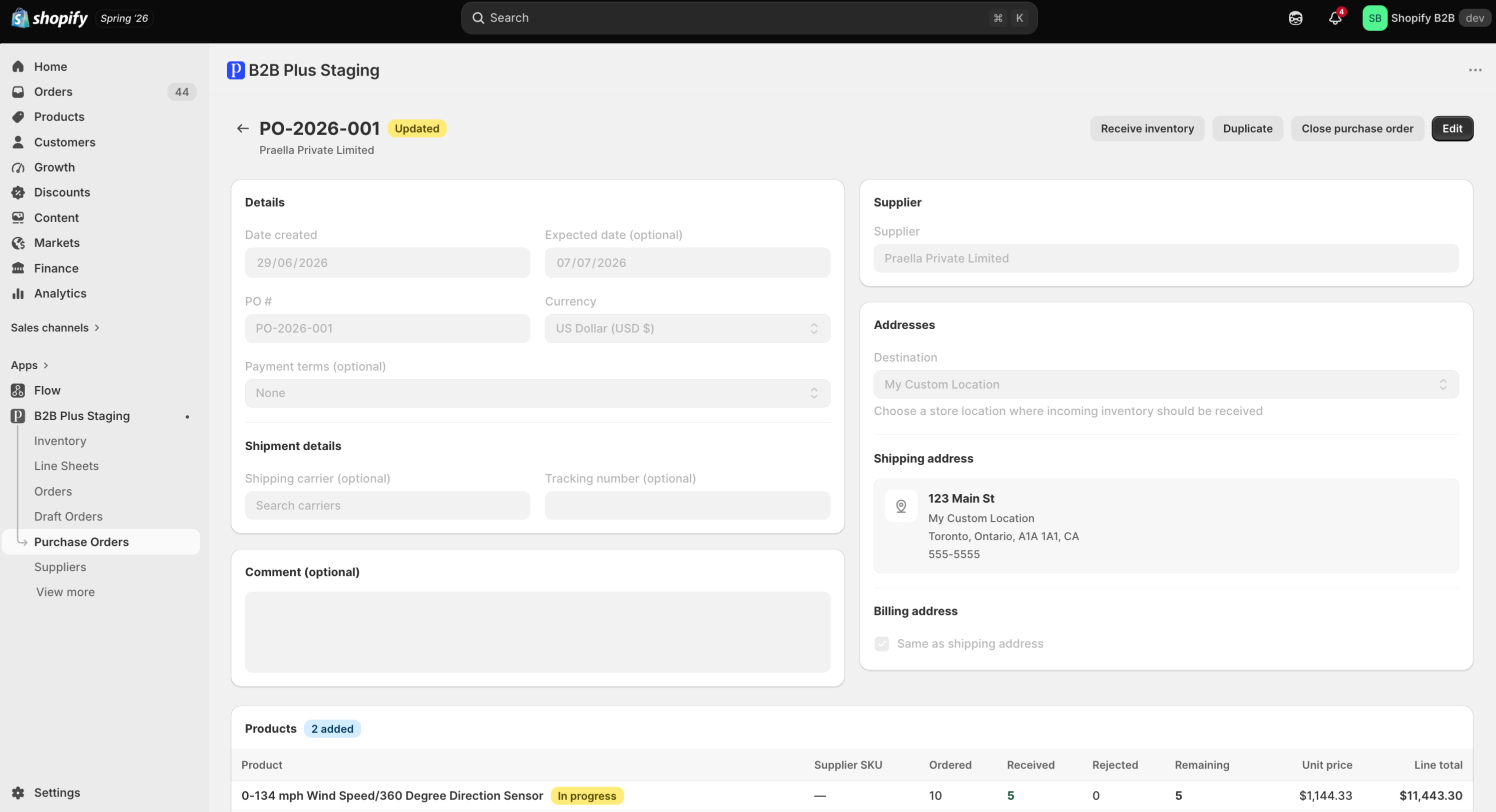
Open any PO from the list to reach its detail page. In view mode, the page is read-only and shows Receive inventory, Duplicate, Close purchase order, and Edit as its header actions — Edit is disabled when the PO is Closed or Cancelled.
In this guide:
- Update Purchase Order Information
- Modify Products
- Change Supplier Information
- Update Shipping Details
- Adjust Quantities
Update Purchase Order Information
Clicking Edit unlocks the Details, Supplier, Addresses, and Comment cards for changes.
Modify Products
Add, remove, or adjust line items the same way as during creation. See Adding Products.
Change Supplier Information
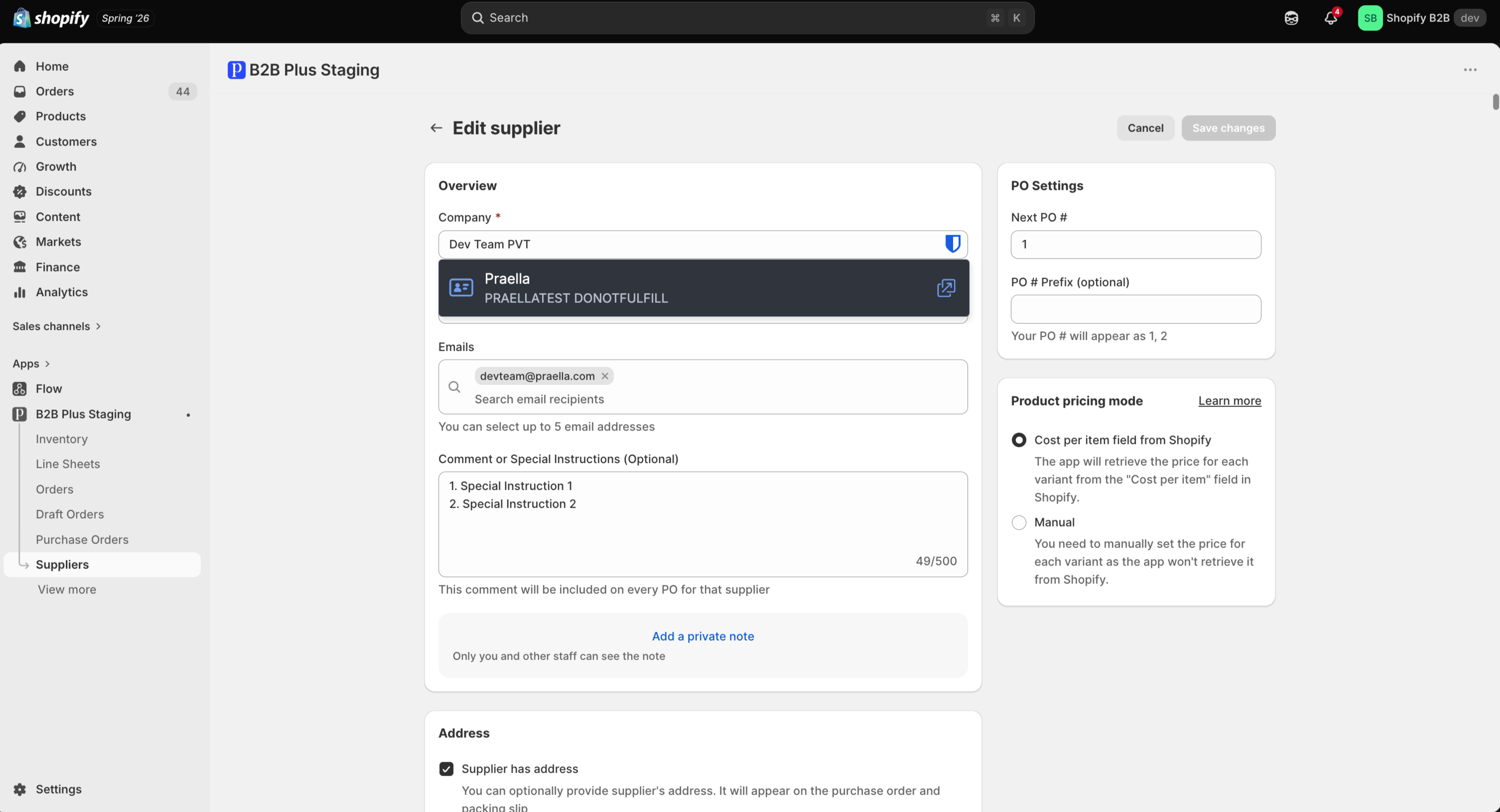
Swap the supplier from the Supplier card while in edit mode. When products are linked to a supplier ahead of time, adding those products to a PO can auto-fill supplier SKU, unit cost, and tax.
Update Shipping Details
Adjust the destination, shipping address, billing address, and — on the detail page's Shipment details card — the Shipping carrier (optional) and Tracking number (optional) fields.
Adjust Quantities
Change ordered quantity, unit cost, or tax on any line that hasn't been fully received.
Use Save changes to persist edits, or Cancel to discard them. Closed or cancelled POs cannot be edited or received — Duplicate is the way to reuse their data in a new PO.