Inventory threshold settings
Inventory Threshold Settings map quantity ranges to a color, so reps and admins can read stock health at a glance in Line Sheets, order forms, and the Inventory panel without checking the exact number every time. Each rule defines a Min Quantity, a Max Quantity, and a Threshold Color; leaving Max Quantity blank marks that rule as open-ended (unlimited).
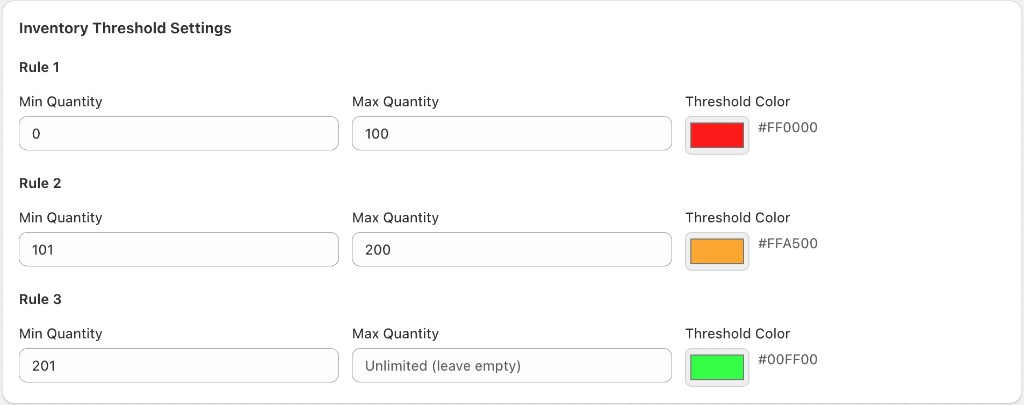
Example rules
| Rule | Min quantity | Max quantity | Threshold color |
|---|---|---|---|
| Rule 1 | 0 | 100 | #FF0000 |
| Rule 2 | 101 | 200 | #FFA500 |
| Rule 3 | 201 | Unlimited (blank) | #00FF00 |
Rule 1 — Red (#FF0000), 0–100 units
Flags low stock, prompting a rep or admin to check availability before committing to a customer.
Rule 2 — Orange (#FFA500), 101–200 units
Flags moderate stock—enough for typical orders, but worth watching.
Rule 3 — Green (#00FF00), 201+ units (max left blank)
Flags healthy stock with no practical ceiling, since leaving Max Quantity empty tells B2B Plus to treat this rule as unlimited.
Rules can be extended or edited from this screen; ranges should not overlap, since each SKU's on-hand quantity is matched to exactly one rule to determine its display color.