Overview
This module is written for store owners, finance staff, and operations teams who bill B2B customers from Shopify Admin. It covers how to generate an invoice from an order, send it to the customer, collect payment, and manage invoices from the Invoices list.
In this guide:
What are Invoices?
An invoice is a formal bill tied to a B2B order. In B2B Plus, an invoice is generated from the order (creating a draft record and PDF), sent to the customer by email, and tracked for payment status until the balance is cleared or the invoice is voided. Each invoice includes line items, totals, payment terms, due date, customer and company details, and a link back to the source B2B order.
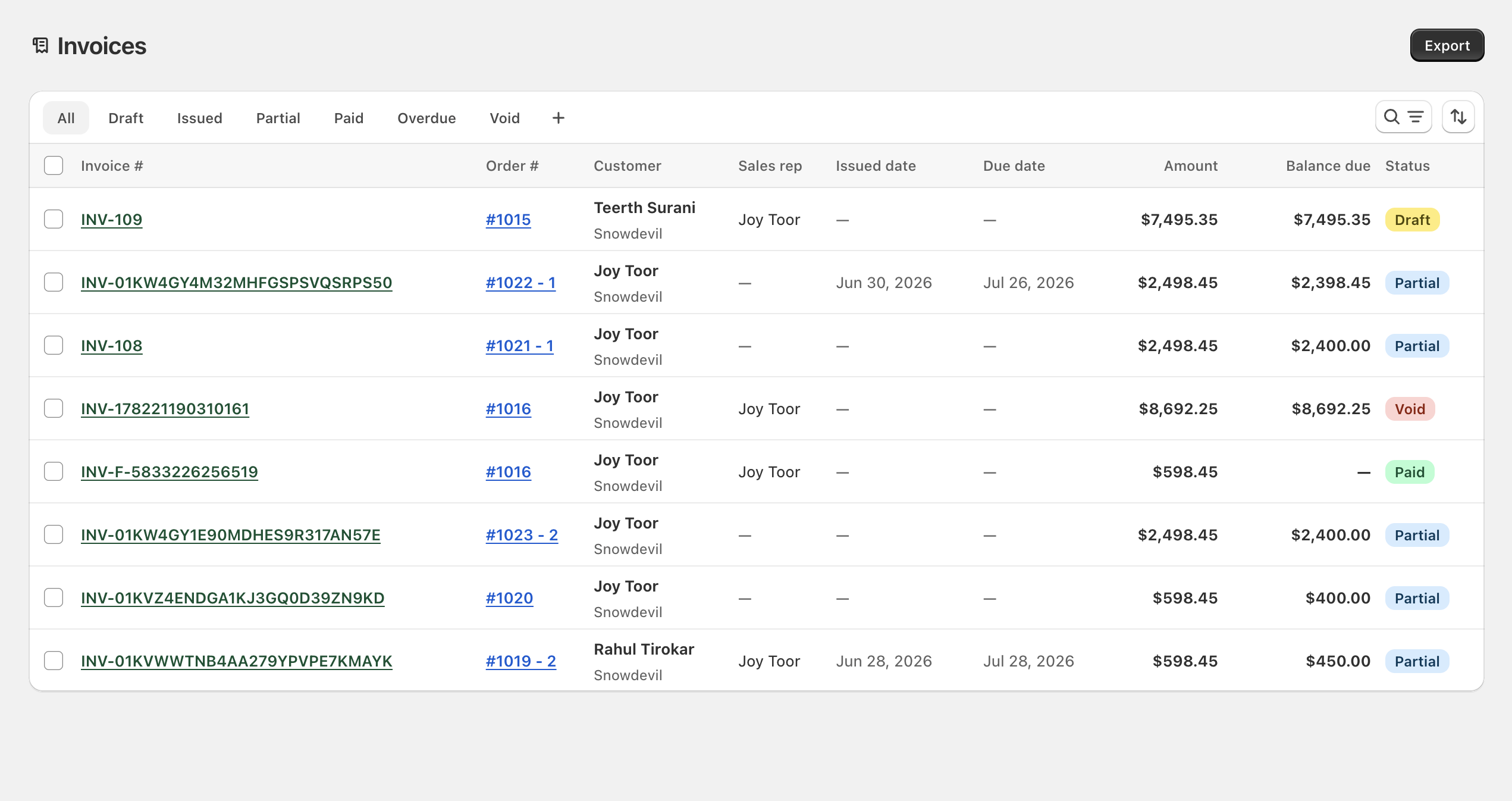
Invoices move through statuses as they're issued and paid:
| Status | Meaning |
|---|---|
| Draft | Generated but not yet sent (or not yet issued) |
| Issued | Sent to the customer; balance still due |
| Partial | Some payment received; balance remains |
| Paid | Fully paid |
| Overdue | Past due date with an outstanding balance |
| Void | Cancelled; cannot be paid or edited |
Benefits of Managing Invoices in B2B Plus
- A single Generate invoice action turns an order's payment section into a formal, emailable bill with almost no manual data entry.
- Order-level and fulfillment-level invoicing both exist, so split or partially shipped orders can be billed exactly as they ship.
- Card (vaulted), ACH, and other manual payment methods are all recorded in one Collect payment flow, with a full payment history on every invoice.
- Status tabs and advanced filters on the Invoices list make it straightforward to chase Overdue or Issued balances without opening every order.
- An External invoice ID field supports ERP-synced invoices, so finance systems and B2B Plus can reference the same record.
How Invoices Connect with Orders
Invoice creation always starts on the order detail page, not on the Invoices list. Once generated, an invoice keeps a permanent link back to its B2B order (and, for fulfillment invoices, to the specific shipment), shown as the B2B Order # field on the invoice and as the Order # column on the Invoices list. Payments recorded against the invoice also reconcile back to the order's own Payment card, so both views stay in sync.