Invoice List
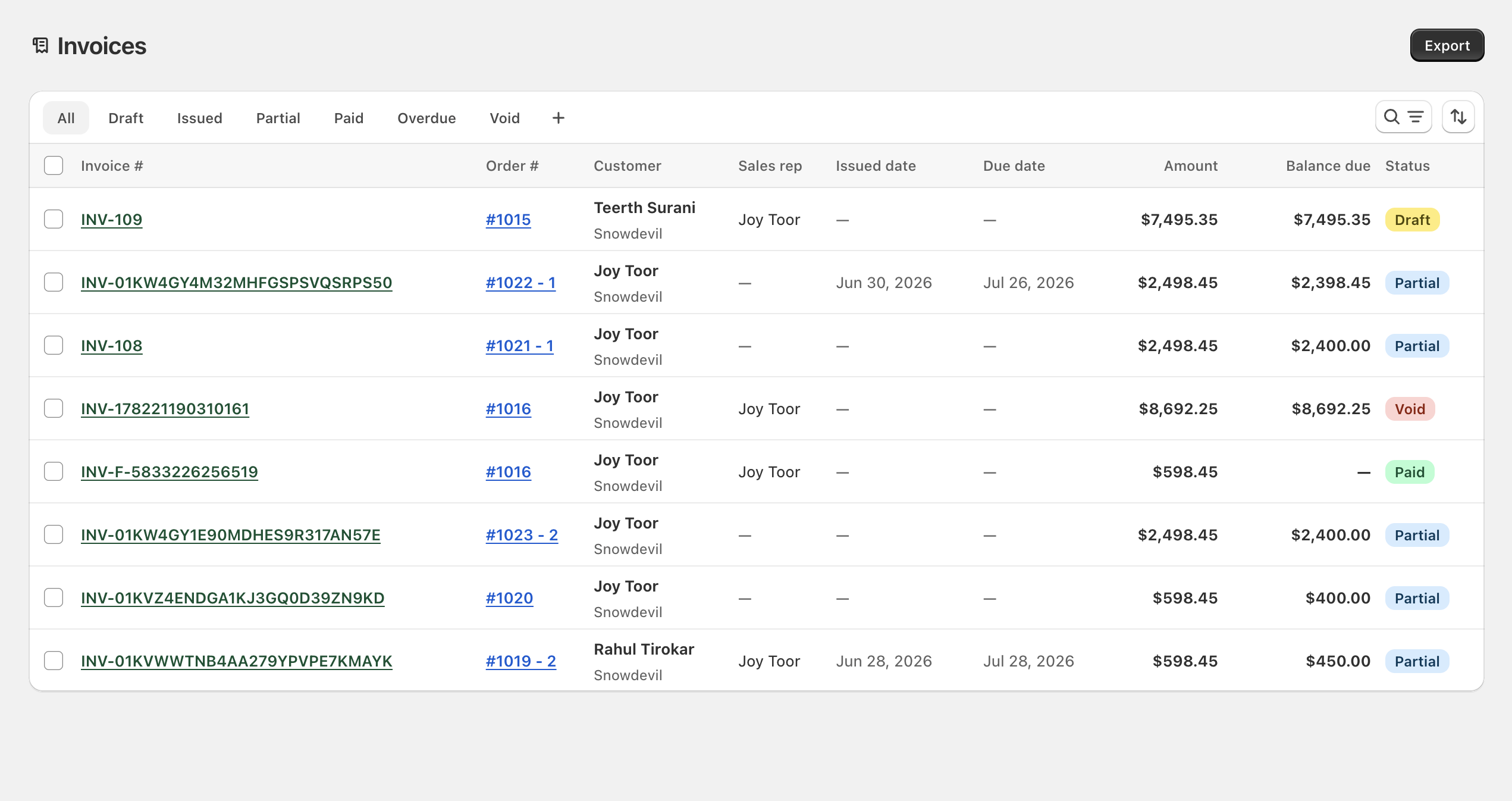
Go to Shopify Admin → Apps → B2B Plus → Invoices to open the Invoices page — the hub for all invoices across every order. The header shows Export as its primary action.
In this guide:
Invoice List Overview
| Column | What it shows |
|---|---|
| Invoice # | Unique invoice number — click to open detail. Auto-generated invoices may be short (INV-109) or a long system-generated id (INV-01KW4GY4M32MHFGSPSVQSRPS50); a leading INV-F- prefix denotes a fulfillment invoice |
| External invoice ID | The ERP-side identifier for this invoice, when the store syncs invoices to an external system |
| Order # | Linked B2B order — click to open it. A suffix like #1022 - 1 indicates the invoice is scoped to one specific shipment/fulfillment on that order rather than the whole order |
| Customer | Buyer name, with company name shown underneath |
| Sales rep | Rep on the order, if any — an em dash when none is set |
| Issued date | When the invoice was sent/issued — an em dash for invoices still in Draft |
| Due date | Payment due date from terms — an em dash when not yet issued or no terms apply |
| Amount | Invoice total |
| Balance due | Remaining amount owed — an em dash once the invoice is fully Paid |
| Status | Draft, Issued, Partial, Paid, Overdue, or Void, shown as a colored badge |
For search, status tabs, advanced filters, sort, and saved views, see Searching Invoices and Filtering Invoices.
Bulk Actions
- Export selected invoices (CSV) — select one or more invoices with the row checkboxes, then choose Export from the bulk actions bar to download just those records.
- Resend invoice emails for selected invoices — select invoices and choose Resend invoice from bulk actions to queue a follow-up email for each one at once.
Export Invoices
- Export current page (CSV) — click the page-level Export button to download the invoices currently visible on the page.
- Export selected invoices (CSV) — as in bulk actions above, a bulk-selected export is also available directly from the list.