Invoice Actions
In this guide:
Send Invoice
Send invoice (for Draft) queues the first invoice email to the customer on the linked order. There is no separate compose step — clicking Send invoice immediately queues the email, using the address shown under Customer → Contact information on the order.
Resend invoice (for already-sent invoices) queues another copy of the same email without regenerating the PDF; available both from the order's Payment section and from the invoice detail page.
A success toast confirms the email was queued (for example, "Invoice … email queued"), and the invoice status updates from Draft to Issued on first send.
Collect Payment
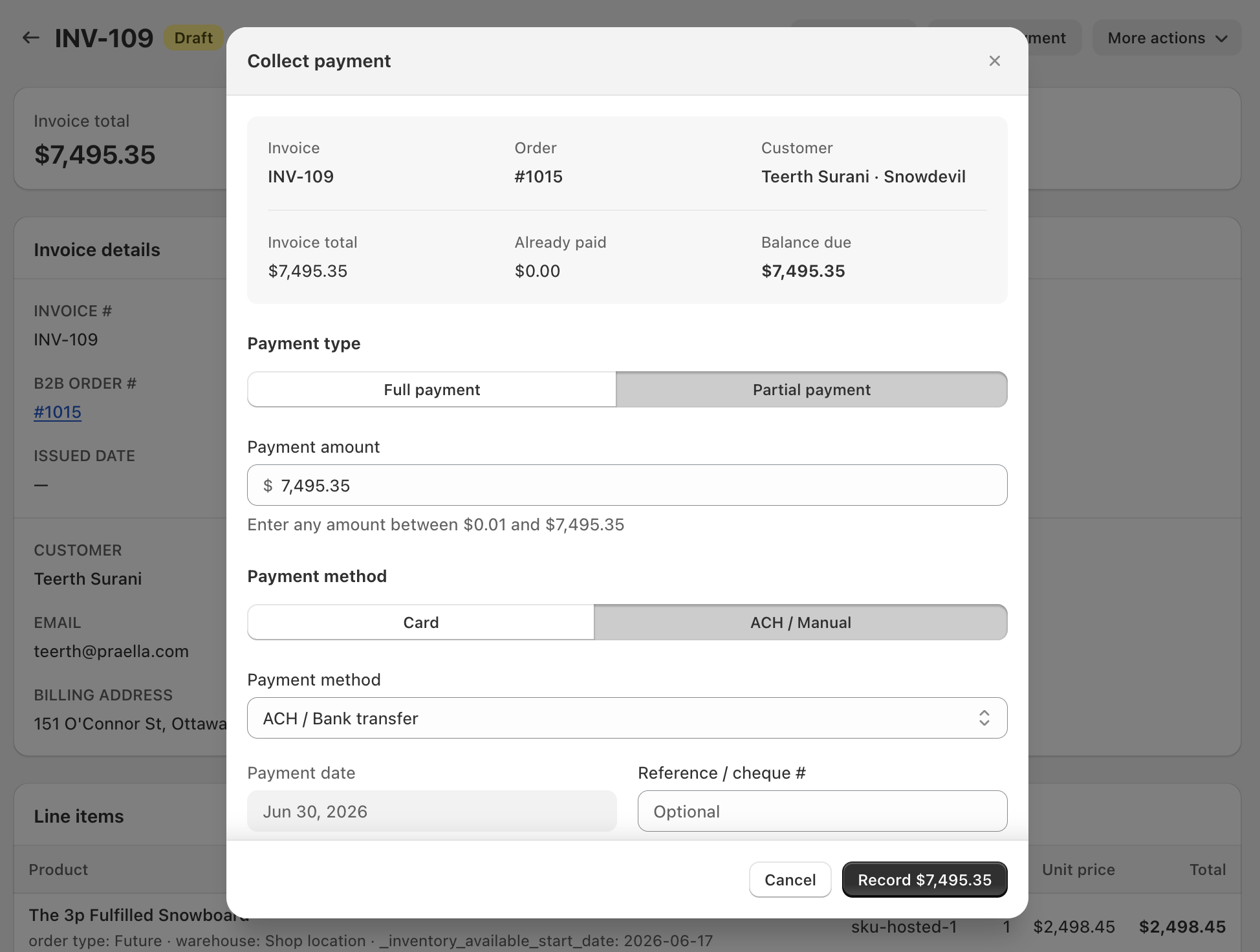
Click Collect payment — from the order's Payment section or from the invoice detail page — to open the Collect payment modal. It opens with a summary block showing Invoice, Order, and Customer (for example, INV-109 / #1015 / Teerth Surani · Snowdevil), plus Invoice total, Already paid, and Balance due.
| Control | Options |
|---|---|
| Payment type | Full payment (defaults the amount to the full balance) or Partial payment (opens an editable Payment amount field, with a hint such as "Enter any amount between $0.01 and $7,495.35") |
| Payment method | Card — charges a card already on file for the customer, when enabled for the store. ACH / Manual — reveals a second Payment method dropdown to pick the specific method (for example, ACH / Bank transfer), along with a Payment date field |
| Reference / cheque # | Optional field captures a check number or transfer reference for reconciliation |
Click Record (the button label updates to show the amount, for example Record $7,495.35) to save the payment. The invoice's Total paid and Balance due update immediately, and status may change to Partial or Paid depending on how much of the balance was covered.
Void Invoice
Void from More actions: open More actions on the invoice detail page and choose Void invoice.
Confirmation required: a confirmation dialog must be accepted before the invoice is voided.
Cannot be undone: once voided, status becomes Void permanently; the invoice cannot receive new payments, though Download PDF still works for record-keeping.
Download PDF
Download invoice PDF from detail page — use this to save or print the invoice PDF at any time, including after the invoice has been voided.