Creating an Invoice
In this guide:
Overview
When to Create an Invoice
Whenever a B2B order (or one of its fulfillments) carries a balance that needs a formal bill — typically once the order is placed, or once a shipment goes out for orders billed per fulfillment.
Invoice Creation Starts from the Orders Module
There is no Create invoice button on the Invoices page itself — every invoice originates from the Payment section of an order, or from a fulfillment card on that order.
Generate from Order
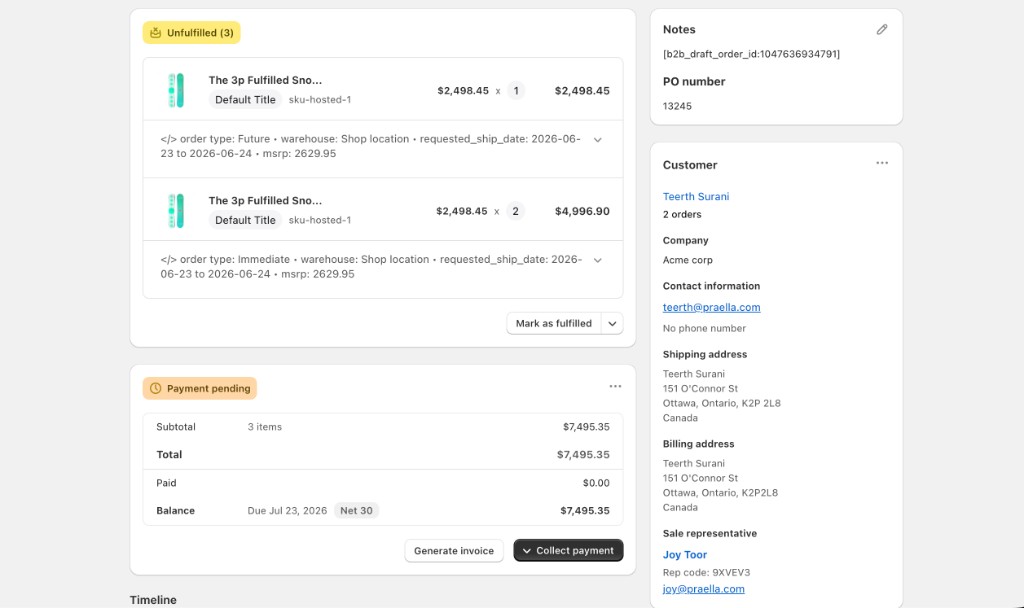
- Open order Payment section — open the order in B2B Plus → Orders and scroll to the Payment section, which shows a status such as Payment pending when a balance is owed, along with Subtotal, Total, Paid, and Balance figures.
- Click Generate invoice — before any invoice exists, the Payment section shows a Generate invoice button next to Collect payment. Click it and wait for the success toast (Invoice generated).
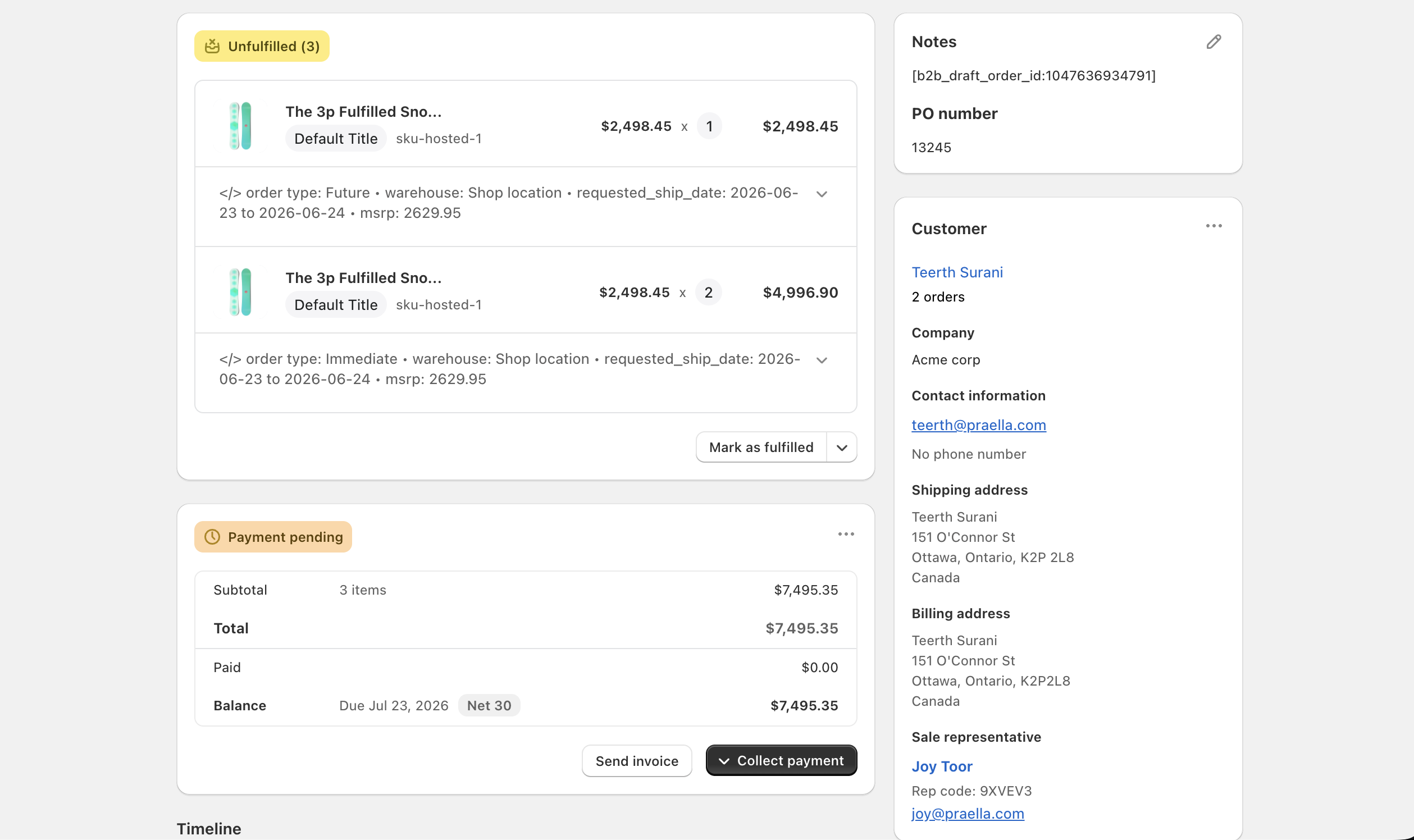
- Invoice appears in Invoices list as Draft — once generated, the same button in the Payment section changes to Send invoice (for a brand-new draft) or Resend invoice (if it was already sent), and the invoice now appears on the Invoices list with status Draft.
A draft invoice is linked to the order, a PDF is prepared and stored with the invoice record, and — for a fulfillment invoice — the Invoice Type field on the resulting record reads Fulfillment invoice rather than a whole-order type.
Generate from Fulfillment
For orders with fulfillments, invoices can also be generated or sent per fulfillment from the fulfillment card's row menu (Generate invoice / Send invoice / Resend invoice / View invoices). This is the path that produces an invoice scoped to one shipment — reflected on the Invoices list as an Order # with a shipment suffix (for example, #1022 - 1).