Filtering Orders
The Orders list's full filter reference. Narrow the Orders list with quick tabs, the filter panel, and saved views for segments you use often.
In this guide:
- Filter by Order Status
- Filter by Payment Status
- Filter by Fulfillment Status
- Filter by Date
- Filter by Warehouse
- Filter by Sales Representative
- Filter by Tags
- Filter by Product
Filter by Order Status
Click Add filter (or open the filter panel) to narrow the list. While the panel is open, changes are a draft until you apply them — Cancel restores the filter snapshot from when you opened the panel. Active filters appear as removable badges below the search bar; use Clear all to remove every filter at once.
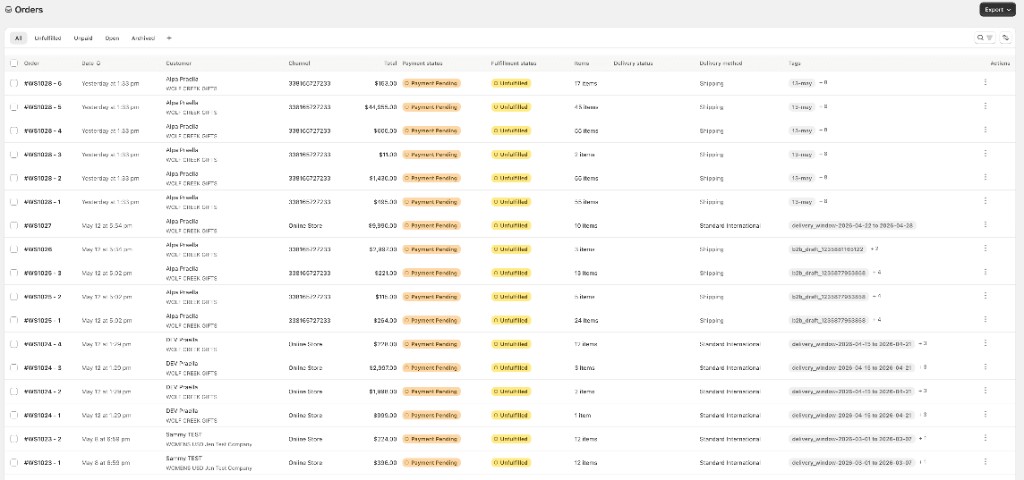
Order Status options (multi-select): Open, Archived, Cancelled, Pending approval (awaiting rep approval), Approved, and Rejected (the latter three reflecting the B2B approval workflow).
Quick tabs (All, Unfulfilled, Unpaid, Open, Archived) provide one-click baselines. Saved views store a combination of filters, search, and sort — see Viewing Orders.
Filter by Payment Status
Multi-select: Payment Pending, Authorized, Partially paid, Paid, Partially refunded, Refunded, Voided, Expired.
Filter by Fulfillment Status
Multi-select: Unfulfilled, Partially Fulfilled, Fulfilled, In progress, On hold, Scheduled.
Filter by Date
Presets: Today, Last 7 days, Last 30 days, Last 90 days, Last 12 months, or Custom with start/end date pickers.
Filter by Warehouse
Single-select from store fulfillment locations. All Warehouses clears the filter.
Filter by Sales Representative
Searchable list of reps — select one rep to see orders tied to that rep and audit that rep's book of business.
Filter by Tags
Tagged with / Not tagged with — free-text tag rules, one tag each.
Filter by Product
Search products by title or SKU, then check products or expand variants for SKU-level filtering. A product with a single variant selects that variant automatically when the product is checked.
Season, order type (ATS / Future / Booking), and SKU can also filter the list when you arrive via a deep link from Inventory or another module (URL parameters season, order_type, sku). These are not separate items in the Add filter menu today.
Tips
- Deep links from Inventory — committed-inventory links can open Orders with
filter_tab=unfulfilledand season/SKU pre-filled. - Shipment vs. whole order — payment may be order-level while fulfillment and totals on the list are shipment-scoped.
- Rep filter — use Sales Representative to audit one rep's book of business.
- Delivery popover — click Delivery status on a row with multiple tracking numbers to see each shipment.
- After bulk actions — the list refetches automatically; refresh the browser if webhook sync is slow.