Overview
This module is written for merchant staff managing B2B orders in Shopify Admin (Shopify Admin → Apps → B2B Plus → Orders). It covers finding and filtering orders, working through an order's full lifecycle from placement to fulfillment, payment, and returns, and using bulk actions and exports for high-volume operations.
In this guide:
- What are Orders?
- Key Features
- Order Lifecycle
- Shopify Orders vs. B2B Plus Orders
- How Order Splitting Works
- How Draft / Saved Order Views Work
What are Orders?
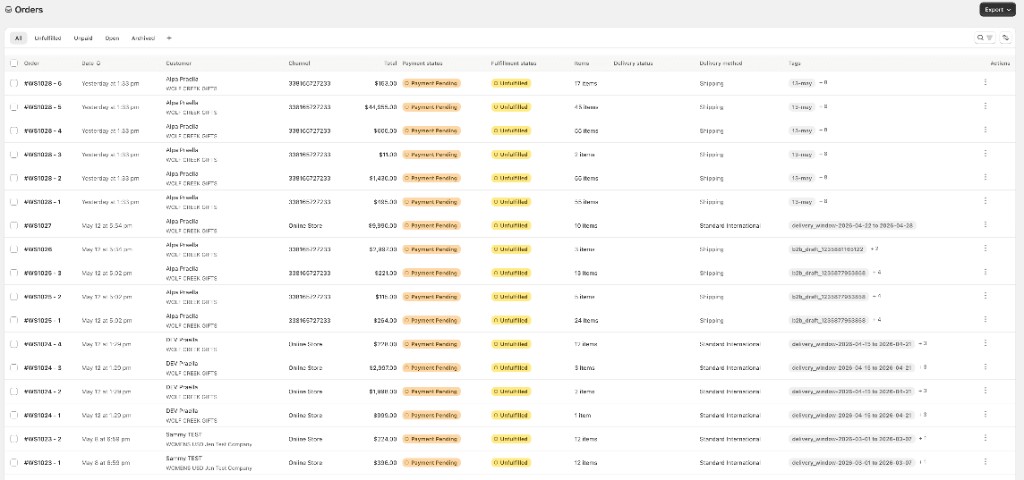
An Order in B2B Plus is a Shopify order enriched with B2B-specific context — company and sales rep attribution, payment terms, warehouse and delivery-window assignment, and (when shipment grouping is enabled) a breakdown into multiple shipments per order. The Orders list and order detail page are the primary places staff review, fulfill, bill, and adjust these orders.
Key Features
- Quick tabs and a full filter panel for finding orders by status, payment, fulfillment, product, tag, date, warehouse, or sales rep
- Shipment-aware list rows and order detail, when Order Splitting by Properties is enabled in Settings
- A two-column order detail page covering fulfillment, payment, timeline, customer, tags, risk, and ERP metadata
- A two-step fulfillment flow with tracking, holds, and per-shipment invoices
- Order-level and fulfillment-scoped invoicing, payment terms, and manual payment collection
- An edit-order flow for adjusting unfulfilled quantities and shipping fees, with inventory validation
- Refund and Return flows, including formal RMA tracking and Process and refund
- Bulk actions — approve/reject, mark as fulfilled/unfulfilled/on hold, capture payments, archive, cancel, and tag management — across many orders at once
Order Lifecycle
- Placement — An order is placed by a customer or sales rep and appears on the Orders list, optionally split into shipments per the Order Splitting by Properties setting.
- Approval (optional) — Stores using rep approval hold the order as Pending approval until a rep approves or rejects it.
- Fulfillment — Unfulfilled lines are picked and shipped through the two-step Mark as fulfilled flow, with tracking added at fulfill time or after.
- Payment — Balances are collected via Mark as paid or Capture payment, and B2B Plus invoices can be generated and sent at the order or shipment level.
- Adjustment (optional) — Unfulfilled quantities or shipping fees can be changed through Edit order before everything ships.
- Refund or return (optional) — Unfulfilled stock is refunded directly; fulfilled stock can be refunded or run through a formal Return with restock and tracking.
- Archive — Completed orders can be archived, and cancelled orders can be deleted, from the order detail More actions menu.
Shopify Orders vs. B2B Plus Orders
Every B2B Plus order is backed by a real Shopify order, but the Orders module adds a layer Shopify's native admin does not have on its own:
- Shipment-level rows and detail views, driven by Order Splitting by Properties, rather than Shopify's single order view
- Company, sales rep, and rep-approval context on the order, layered onto the standard Shopify customer and fulfillment data
- B2B Plus invoices and net payment terms, separate from (but reconciled against) Shopify's own payment status
- An ERP export payload (View JSON) and per-order/per-shipment XLS, PDF, and line-sheet downloads not present in stock Shopify admin
- Bulk approve/reject and bulk capture-payment actions specific to B2B workflows, alongside the usual archive, cancel, and tag actions
How Order Splitting Works
When Order Splitting by Properties is enabled in Settings, B2B Plus creates a separate list row (and separate fulfillment) for each group of line items on a Shopify order that share the same value for one configured property — Season, Delivery date, Start/End date, or Order type. This is what causes a single Shopify order to appear as multiple rows on the Orders list. Full mechanics are covered in Order Splitting.
How Draft / Saved Order Views Work
Saved views let staff store a current combination of filters, search, and sort as a named tab next to the default quick tabs, so a recurring lookup (for example "Future season — East warehouse — unpaid") can be reapplied in one click rather than rebuilt each time. See Viewing Orders — Saved Views for the full workflow.
For draft orders (quotes and work-in-progress carts before they become live Shopify orders), see Draft Orders.