Viewing Orders
Who this is for: merchant staff managing B2B orders in Shopify Admin. This section covers how to find orders, use quick tabs and filters, work with shipment rows, select orders for bulk work, export data, and save custom views.
In this guide:
- Order List Overview
- Order Details
- Order Status
- Payment Status
- Fulfillment Status
- Shipment Rows
- Bulk Actions
- Saved Views
Order List Overview
Go to Shopify Admin → Apps → B2B Plus → Orders. The page title shows Orders with the order icon, and the primary Export button sits in the top-right of the page header.
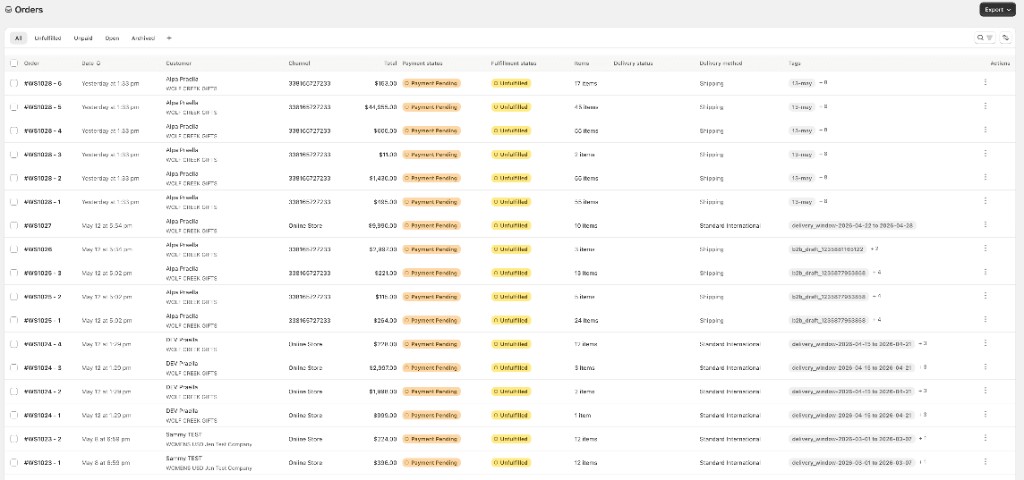
The list shows one row per order, or one row per shipment when shipment grouping is enabled in Settings and line items differ on the configured property.
Order Splitting (Settings) — Shipments are controlled in Settings, not on the Orders page. When shipment grouping is on, the system creates separate list rows (and separate fulfillments) for each group of line items that share the same value for the chosen property. Configure this at Shopify Admin → Apps → B2B Plus → Settings, in the Order Splitting by Properties card.
| Setting (UI label) | What it does |
|---|---|
| Enable order splitting by properties | Turns shipment grouping on for new orders (and how the list expands into multiple rows) |
| Property to split on | One dimension only — line items with different values become separate shipments |
When shipment grouping is disabled, or all lines share the same value for the selected property, you see one row per order on this list.
Quick tabs
These tabs appear first and cannot be deleted:
| Tab | Shows |
|---|---|
| All | Every non-archived order (default) |
| Unfulfilled | Orders with unfulfilled line items |
| Unpaid | Orders with outstanding payment |
| Open | Open orders (not cancelled/closed) |
| Archived | Archived orders only |
Click a tab to filter instantly. The active tab is stored in the URL as filter_tab (for example filter_tab=unfulfilled). Switching to a default tab clears custom filters from a saved view so you start from a clean baseline for that quick tab.
Table columns
| Column | What it shows |
|---|---|
| Order | Order name/number (clickable link); shipment rows include a shipment identifier in the name |
| Date | Order date |
| Customer | Buyer name on the first line; B2B company on the second line when present |
| Channel | Sales channel (for example Online Store, draft) |
| Total | Order or shipment total (right-aligned) |
| Payment status | Badge — Paid, Partially paid, Pending, etc.; a red Due badge appears when payment terms are past due |
| Fulfillment status | Badge — Unfulfilled, Partially Fulfilled, Fulfilled, On hold, etc. |
| Items | Line item count (for example 12 items) |
| Delivery status | Tracking summary; click to expand tracking numbers and carriers when multiple shipments exist |
| Delivery method | Shipping method label, or Shipping when blank |
| Tags | First tag as a badge; + N when more tags exist |
| Actions | Row menu (⋯) — per-order downloads |
Cancelled orders show struck-through text in most columns.
Sorting and pagination
Click the sort icon in the filter bar (or a sortable column header) to open Sort by, then choose a field and direction:
| Sort by | Direction options |
|---|---|
| Order number | Ascending / Descending |
| Date | Oldest to newest / Newest to oldest |
| Items | Ascending / Descending |
| Customer name | A–Z / Z–A |
| Payment status | Ascending / Descending |
| Fulfillment status | Ascending / Descending |
| Total | Low to high / High to low |
| Channel | A–Z / Z–A |
Default sort is Date — Newest to oldest. Sort is stored in the URL (sortField, sortDirection) and clears row selection when changed. Pagination shows 25 rows per page; the page number is kept in the URL (page=2, etc.) so refresh and back navigation preserve your place.
Row actions
Each row has a ⋯ menu in the last column (Actions) with synchronous downloads for that order or shipment:
| Menu item | Output |
|---|---|
| Download Order XLS | Excel workbook for the order/shipment |
| Download Product Data XLS | Product-level Excel export |
| Download LineSheet PDF | Line-sheet layout PDF for the order lines |
| Download Order PDF | Invoice-style order PDF |
These download immediately in the browser rather than through an asynchronous downloads queue.
Page export (header button)
Click Export in the page header (top right):
| Option | Format & scope |
|---|---|
| Full Order Details | CSV — line-level detail for orders on the current page |
| Order Summary | CSV — order-level summary for orders on the current page |
The button is disabled when the current page has no orders. For a full filtered export beyond one page, change filters and export page by page, or use the row/bulk workflows instead. See Exporting Orders for the full export reference.
Open order detail
Click the order name in the first column, or click anywhere on the row. Middle-click or Open in new tab on the order name uses real links with embed parameters preserved for the Shopify app session. For a shipment row, detail opens with that shipment pre-selected.
URL and deep links
List state is reflected in the URL so bookmarks and shared links work:
| Parameter | Purpose |
|---|---|
filter_tab | Quick tab (unfulfilled, unpaid, etc.) |
view_id | Saved view id |
search | Search query |
rep_id | Sales rep filter |
warehouse | Warehouse filter |
order_status, payment_status, fulfillment_status | Status filters |
sortField, sortDirection | Sort |
page | Pagination |
season, order_type, sku | Often set from Inventory "View all" links |
Order Details
For a full field-by-field reference and fulfillment workflows, see Order Details. From the list, open any row to work fulfillment, payment, edits, refunds, and returns on that order or shipment.
Order Status
Click Add filter (or open the filter panel) to narrow the list. Order Status is a multi-select filter:
| Status | Meaning |
|---|---|
| Open | Active order in your workflow |
| Archived | Archived / historical |
| Cancelled | Cancelled in Shopify |
| Pending approval | Awaiting rep approval |
| Approved | Rep approved |
| Rejected | Rep rejected |
The latter three reflect the B2B approval workflow.
Payment Status
Multi-select filter values and badges reflect:
| Status | Meaning |
|---|---|
| Payment Pending | Payment not yet captured |
| Authorized | Payment authorized, not captured |
| Partially paid | Partial capture or payment |
| Paid | Fully paid |
| Partially refunded / Refunded | Refund issued |
| Voided / Expired | Authorization voided or expired |
Fulfillment Status
| Status | Meaning |
|---|---|
| Unfulfilled | Nothing shipped yet |
| Partially Fulfilled | Some lines shipped |
| Fulfilled | All eligible lines shipped |
| In progress | Pick/pack in progress |
| On hold | Fulfillment held |
| Scheduled | Scheduled fulfillment |
Shipment Rows
When shipment grouping from Settings applies, one Shopify order may appear as multiple rows — one per shipment.
| Behavior | Detail |
|---|---|
| Row identity | Each shipment row has its own checkbox and list id |
| Open detail | Click the order name or anywhere on the row |
| Shipment scope | Shipment rows open order detail scoped to that shipment |
| Single-shipment order | Orders without multiple shipments open the full order at /orders/[orderId] |
| Delivery | Tracking and delivery status are per shipment where fulfillments differ |
| Totals | Total column reflects the shipment amount, not always the full parent order |
Payment may be order-level while fulfillment and list totals are shipment-scoped. Configure splitting at Shopify Admin → Apps → B2B Plus → Settings → Order Splitting by Properties. See Order Splitting.
Bulk Actions
Check rows to enable bulk actions in the table header. Click the chevron beside N selected for Select all (all matching results across pages) or Unselect all.
| Selection pattern | What happens |
|---|---|
| Select rows on this page | Check individual rows or the page header checkbox |
| Select all matching results | Click the chevron beside N selected → Select all (when results span more than one page) |
| Clear selection | N selected chevron → Unselect all |
| Change page | Selection is kept when you change pages (Shopify-admin style) |
| Change filters, search, sort, or tab | Selection clears |
Each shipment is its own selectable row — not implicit siblings on the same parent order.
Progress toaster
Long-running bulk jobs show an In progress panel fixed at the bottom-right of the screen.
| Element | What it means |
|---|---|
| In progress (header) | Click to collapse or expand the list |
| × (header) | Dismiss all progress rows |
| Row label | Action in flight — for example "Adding tags to 23 orders" |
| M of N | Orders processed so far |
| × (row) | Dismiss that job's progress line (does not cancel the server work) |
Shown for Add tags, Remove tags, Archive/Unarchive, and Mark as (fulfilled/unfulfilled/on hold). Quick actions (approve, cancel, mark-as-paid) use result toasts instead.
Promoted actions
- Actions → Approve / Reject — For B2B orders pending rep approval (customer-placed, authorized payment). Approve moves eligible orders to approved and may release for fulfillment; Reject rejects eligible orders per store rules. Opens a confirmation modal with the eligible order count; ineligible selections are skipped. A toast reports success or partial failure, then the list refreshes.
- Mark As — Mark as fulfilled (bulk create fulfillments with validation), Mark as unfulfilled (reopen fulfillment orders), or Mark as on hold (hold reason required; Reason notes required when reason is Other). A confirmation modal opens for the chosen action; Send a notification to the customer is checked by default. For Mark as on hold, fulfilled rows in the selection are skipped, with a warning banner showing how many eligible rows will update. Mark as in progress is not available in bulk today.
- Capture payments — Opens the Mark as paid modal. An info banner notes that selecting a shipment row marks the entire parent order as paid. A warning banner notes this marks paid only — customers are not charged; no pending capture on these orders. A checkbox "Mark all N selected order(s) as fully paid" is required before confirm. Amount shows total for eligible orders (outstanding balance for partially paid). Skips paid, refunded, and partially refunded orders. If none of the selected orders can be marked paid, the modal shows a warning only, with no confirm button.
Secondary actions (⋯ menu)
- Archive orders — Archives unique parent orders (any shipment row on an order archives the whole order)
- Unarchive orders — Restores archived or cancelled orders
- Cancel orders — Cancels eligible rows. Disabled when every selected row is already cancelled or fully fulfilled. On open, the app loads cancel eligibility for the selection. An info banner notes each shipment row is cancelled on its own — the parent Shopify order is not cancelled unless you select the whole order. A red banner lists rows that cannot be cancelled (already cancelled, fulfilled, partially fulfilled). Optional: Restock inventory, Send notification to customer, and a staff note (same form as single-order cancel).
- Add tags — Type a tag and press Enter, or check tags under Available tags (loaded from your store). Click Save — tags are merged onto each unique parent order in the selection, with progress shown in the progress toaster.
- Remove tags — Check one or more tags under Tags to remove (the union of tags on selected orders), then click Save — checked tags are removed from each affected order.
Tips
- Filter first — use Unfulfilled or Unpaid tabs before bulk fulfill or mark-as-paid.
- Shipments — Select all on page selects shipment rows visible on that page, not hidden siblings.
- Archive / mark paid — one shipment row affects the whole parent order.
- Approve/reject — same eligibility as row-level approve/reject on the list.
- After bulk actions — the list refetches automatically; refresh the browser if webhook sync is slow.
Saved Views
Create a custom tab that saves your current filters, search, sort, and optional quick-tab baseline:
| Step | Action |
|---|---|
| 1 | Set filters, search, and sort the way you want |
| 2 | Click Create view (or the + tab control in the filter bar) |
| 3 | Name the view — it appears as a new tab after the five default tabs |
| 4 | Click the saved tab anytime to re-apply those filters |
Saved views persist per store staff account. The URL uses view_id when a saved view tab is active. Use saved views for recurring workflows — for example "Future season — East warehouse — unpaid."
For the full search and filter reference, see Searching Orders and Filtering Orders.