Draft Orders
Draft orders in B2B Plus let you build and hold wholesale carts before they become final orders. They are useful for quotes, pre-season assortments, long-cycle deals, and any workflow where you need to confirm details before invoicing and fulfillment.
In this guide:
- What Draft Orders Are
- Draft Orders Page Layout
- Columns on the Draft Orders Grid
- Why Use Draft Orders
- How to Work with Drafts
- Important Details to Remember
- Draft Order FAQs
- Draft Orders Troubleshooting
What Draft Orders Are
A draft order is a work-in-progress order that is not yet a live Shopify order. Sales reps or internal users can add items, adjust quantities, and capture customer choices without triggering payment or shipment right away.
A B2B Plus order always originates from a real Shopify order — placed by a customer, a sales rep on their behalf, or created as a draft order that is later completed. When you complete a draft:
- B2B Plus creates or updates the corresponding Shopify order
- Inventory can be validated or allocated according to your rules
- Tags and references on the final order help you trace it back to the draft
Draft Orders Page Layout
The Draft orders page shows a list of drafts with tools to search, filter, and export.
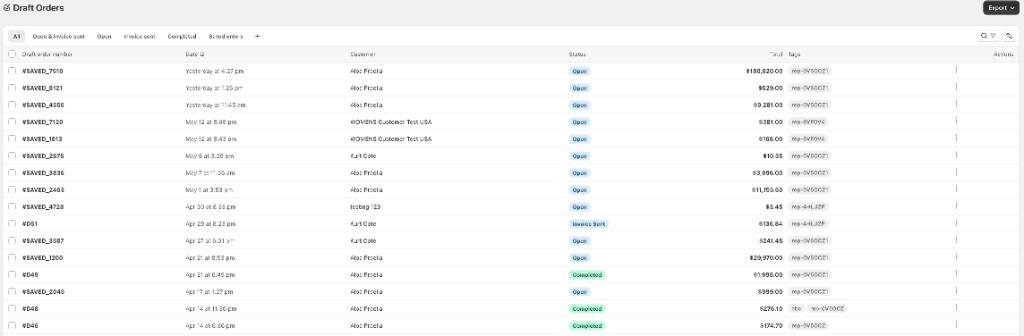
Header and export options
At the top of the page you typically see:
- Title such as Draft orders
- Search and filters to narrow the list
- An Export control (often used to download CSV or spreadsheet data) for reporting or offline work
Export types often include:
- Full details exports for deep analysis (line-level and extended fields — similar to Full Order Details where that option exists)
- Summary exports for high-level reporting (similar to Order Summary where that option exists)
Choose the option that matches whether you need full line detail or a roll-up per draft.
Using status tabs
Status tabs help you focus on different stages of draft orders.
Common tabs:
| Tab | Role |
|---|---|
| All | Every draft within scope |
| Open | Drafts that are still being worked on |
| Completed / Converted | Drafts that have already been converted to final orders |
| Archived / Cancelled | Drafts that are no longer active |
Tabs can vary by store (for example Invoice sent or Saved orders), but the goal is always the same: quickly jump to the drafts you care about.
Columns on the Draft Orders Grid
The main grid gives you a structured view of all drafts.
Typical columns include:
- Checkbox — Select one or more drafts for bulk actions
- Draft number / name — Identifier for the draft (for example Draft #D-1027)
- Customer / company — B2B customer and company context
- Sales representative — The rep who created or is responsible for the draft (when used)
- Created date / last updated — Timing information to see how current the draft is
- Status — Open, completed, archived, or other statuses
- Total / currency — Draft value and currency
- Tags — Labels that help filter and trace drafts
Row actions for each draft
Each row usually offers quick actions, such as:
- Open — View and edit the draft details
- Export XLS / PDF — Download a formatted version of the draft (for example order workbook, product data, line sheet, or PDF summary — depending on the menu your store shows)
- Allocate / validate inventory — Trigger inventory checks or allocations where supported (for example View allocation summary)
- More actions — Additional options, such as archive, duplicate, or delete (depending on your configuration and permissions)
Tags on draft rows
Tags add structured information to drafts so you can filter, report, and trace activity.
Common tag types include:
- Workflow tags — Stages, campaigns, or seasons
- System tags — IDs that connect drafts to final orders or reps
b2b_draft_[id] draft tag
The b2b_draft_[id] tag is used to tie a Shopify order back to its original B2B draft.
- In live data,
[id]is replaced by the draft order id (digits only), for exampleb2b_draft_1236012958018 - This tag may appear on the Shopify order and in Notes (for example
[b2b_draft_order_id:1236012958018]) - Use it to quickly locate the original draft from the order, or to join exports across drafts and orders
rep-[code] sales rep tag
The rep-[code] tag identifies which sales representative is tied to the draft or order.
- In live data,
[code]is replaced by the rep code, for examplerep-0V5OCZ1 - It aligns with the Rep code shown next to the sales representative in sidebars or detail views
- Use it for filtering, reporting, and tracking rep performance across drafts and final orders
Why Use Draft Orders
Draft orders support a range of B2B scenarios, including:
- Building quotes and proposals that can be reviewed before approval
- Managing pre-season assortments or long-term deals that need back-and-forth changes
- Allowing reps to prepare carts while on calls or in person, without committing inventory or payment immediately
- Keeping a clear separation between in-progress work and final orders for finance and operations
How to Work with Drafts
Working from the draft list
- Go to Draft orders from the navigation.
- Use status tabs, search, and filters to narrow the list.
- Select one or more drafts using the checkboxes.
From the list you can:
- Open a single draft to review or edit
- Run bulk actions (for example export or archive) when your permissions allow it
- Export the current view for offline analysis
Working in draft detail
When you open a draft, you usually see:
- Header information — Draft number, status, customer, rep, and key tags
- Line items — Products, quantities, prices, and any line-level properties
- Totals and terms — Subtotal, discounts, shipping, tax, and draft total
- Notes and comments — Internal notes that help your team collaborate
Typical actions from draft detail:
- Add or remove items, adjust quantities, and update prices or discounts
- Update customer, company, or shipping information
- Add or edit internal notes and tags
- Validate or allocate inventory, when your workflow requires it
- Complete the draft to create or update the related Shopify order
Saved views vs. draft orders vs. Shopify drafts
Saved views (on the Orders list) let staff store a current combination of filters, search, and sort as a named tab next to the default quick tabs, so a recurring lookup (for example "Future season — East warehouse — unpaid") can be reapplied in one click rather than rebuilt each time. Saved views are not draft orders — they are saved filter combinations on the live Orders list. See Viewing Orders — Saved Views.
Depending on your configuration, B2B Plus can work alongside Shopify's own Draft orders feature:
- Saved orders / B2B drafts live inside B2B Plus and are optimized for B2B workflows (reps, seasons, prebook, and so on)
- Shopify drafts are native Shopify records; in some setups, completing a B2B draft may create or update a Shopify draft or order
Your implementation may map these concepts differently. If you are unsure how they connect in your store, check with your B2B Plus implementer or your internal admin.
Important Details to Remember
- Draft orders are not final orders. They do not behave like live orders until they are completed.
- Tags such as
b2b_draft_[id]andrep-[code]are key to tracing drafts and orders in exports and Logs. - Inventory behavior on drafts (for example when it is reserved or validated) depends on your configuration.
Draft Order FAQs
Do draft orders reserve inventory?
This depends on your configuration. Some stores reserve inventory at draft stage, others only upon completion. Check your internal guidelines or Settings.
Can customers see draft orders?
Drafts are usually internal to your team and reps. Customers typically see final orders or storefront carts, not internal drafts.
Can I export draft orders?
Yes. Use Export on the Draft orders page and choose the export type that best fits your reporting needs.
Draft Orders Troubleshooting
| Symptom | What to try first |
|---|---|
| I cannot find a draft I worked on yesterday | Check the status tabs (for example Completed or Archived) and remove extra filters. |
| A completed draft did not create the expected order | Search by the b2b_draft_[id] tag in orders or Logs to see what happened. |
| Inventory does not match what I see on the draft | Confirm how inventory is reserved in your store and check recent changes in Inventory and Logs. |