Overview
This module is for store owners, merchandisers, and staff who set up product catalogs for B2B buyers in Shopify Admin (Shopify Admin → Apps → B2B Plus → Line sheets). It covers creating line sheets, adding products, setting publish dates, and making catalogs visible on the Online Store.
In this guide:
What are Line Sheets?
A line sheet is a curated product catalog built in B2B Plus — a hand-picked collection of products that wholesale buyers or sales reps browse and order from. Each line sheet includes a title and optional description, an optional cover image, the products chosen from the Shopify catalog, a catalog type that governs how buyers order from it, and publish settings that control when the catalog is visible on the store. When a line sheet is published and within its date range, logged-in B2B buyers and sales reps can browse it on the Online Store.
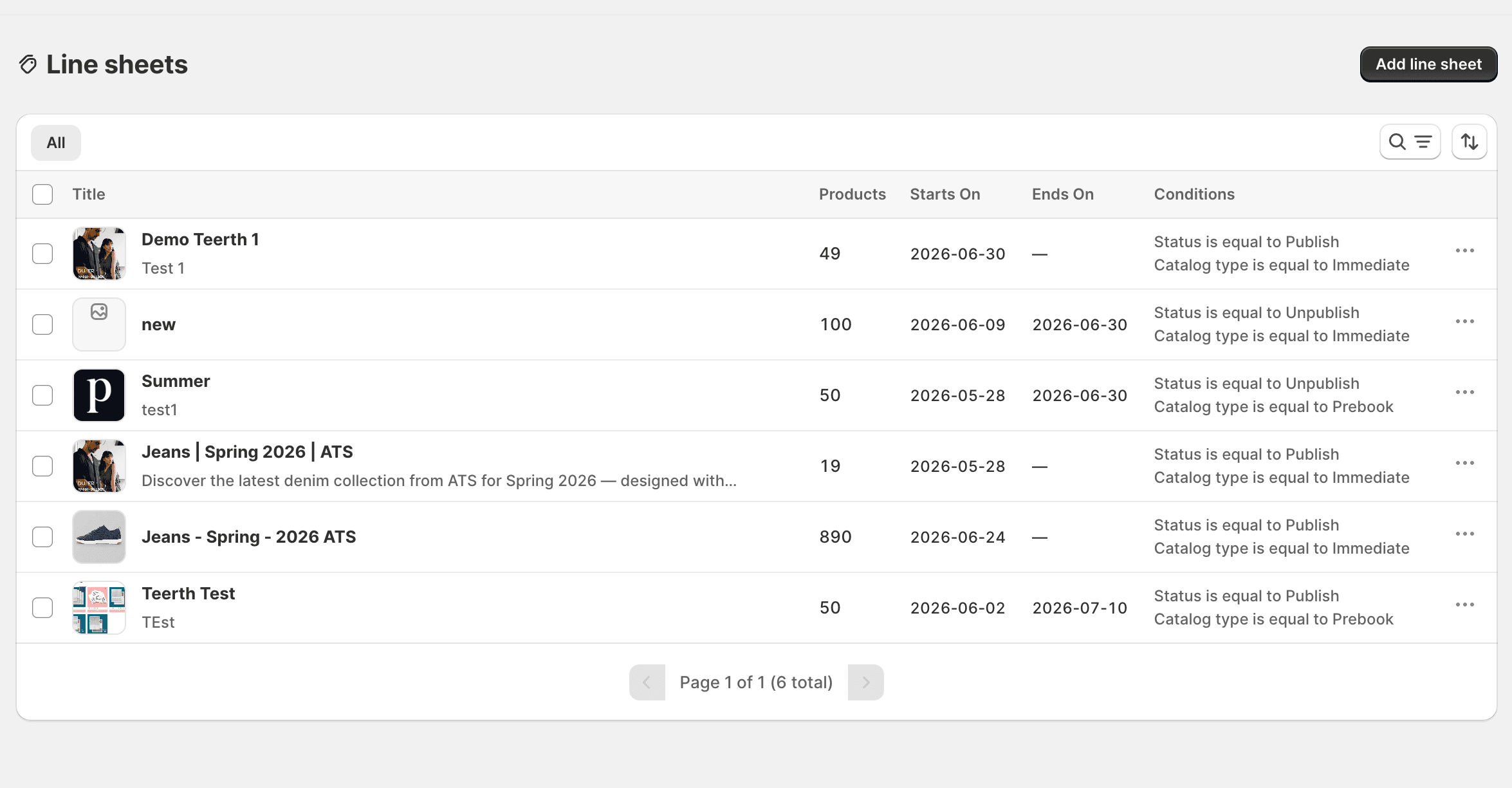
Key Features
- Curated, reusable product catalogs built from the existing Shopify product list, with no fixed limit on how many products a line sheet can contain
- A dedicated catalog type (Immediate/ATS, Future, or Prebook/Booking) that tells the system how ordering and inventory should behave for that catalog
- Scheduled publishing — a start date, an optional end date, and automatic publish/unpublish behavior based on those dates
- A product picker with filters for vendor, product type, status, tag, and existing line sheet membership
- List-level bulk actions — publish, unpublish, and delete several line sheets at once
- Buyer-facing PDF export, requested from the storefront and delivered via Customer Account → View Downloads
How Line Sheets Work
Every line sheet is backed by a Shopify collection: publishing a line sheet makes that collection (and the products in it) visible to logged-in B2B buyers on the storefront, scoped to the catalog type and publish window configured on the line sheet. Deleting a line sheet also removes its linked Online Store collection.
Line Sheet Workflow
- Create: add a title, optional description, and optional cover image, then select at least one product.
- Configure: choose a catalog type (Immediate, Future, or Prebook) and set publish start/end dates.
- Publish: set status to Publish, either immediately or on a future date, so the catalog appears within its publish window.
- Buyers browse: logged-in B2B buyers and reps see the catalog on the Online Store while it is published and inside its date range.
- Maintain: edit products, dates, or catalog type as the season or offer changes; unpublish drafts until they're ready.
- Export (optional): buyers can request a PDF of the catalog from the storefront, delivered via View Downloads.