Managing Line Sheets
Work with existing catalogs from the Line sheets list and edit page.
In this guide:
View Line Sheets
Line Sheet List
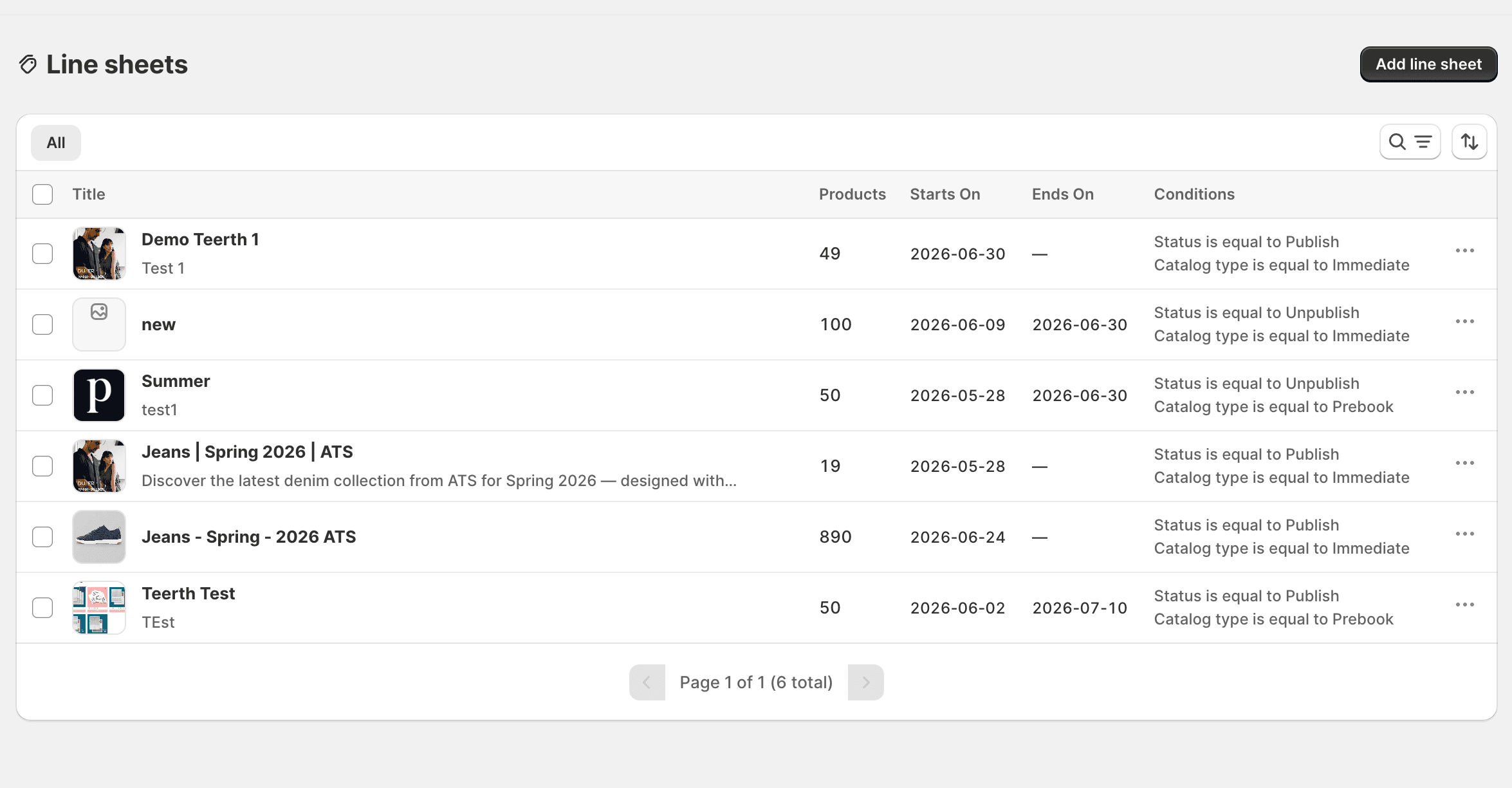
The Line sheets list is the home screen for all catalogs. Its header shows an All quick tab on the left and search, filter, and sort icon buttons on the right, next to the primary Add line sheet button.
| Column | What it shows |
|---|---|
| Title | Cover image (or a product image), title, and short description |
| Products | How many products are in the catalog |
| Starts On | First day the catalog becomes visible (times are in UTC) |
| Ends On | Last day of visibility, or an em dash (—) if there is no end date |
| Conditions | Two stacked rules — Status is equal to Publish/Unpublish, and Catalog type is equal to Immediate/Future/Prebook |
| Action | What it does |
|---|---|
| Add line sheet | Start a new catalog |
| Search icon | Find line sheets by title |
| Filter icon | Show by status (All, Publish, Unpublish) or catalog type |
| Sort icon | Order the list by title, product count, or date |
| Click a row | Open the catalog to view or edit |
| Row menu (⋯) | View, Publish, Unpublish, or Delete |
| Bulk select + Delete selected | Remove several line sheets at once |
Deleting a line sheet also removes its linked collection on the Online Store.
Line Sheet Details
Opening a row shows the same form used to create the catalog, pre-filled with its saved title, description, products, publish dates, status, catalog type, and cover image.
Status Overview
Each line sheet's current state — Published, Unpublished, or Scheduled — is visible directly in the Conditions column on the list, without needing to open the catalog. See Publication Status.
Edit a Line Sheet
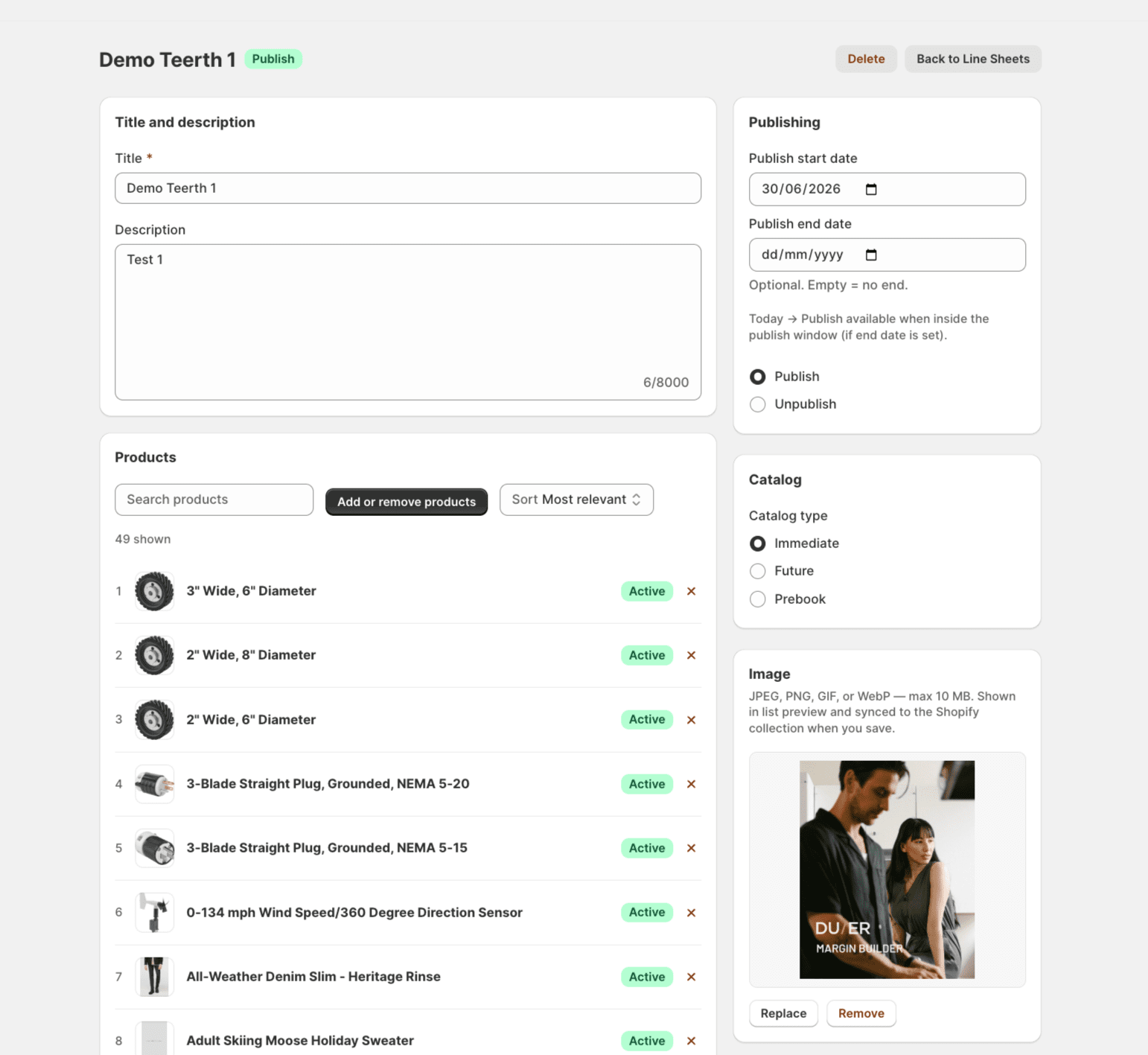
Click any row on the list, or choose View from the row menu, to open the edit page — it looks like the create page, with saved information already filled in, plus the catalog's title, its live status badge, and Delete and Back to Line Sheets buttons in the page header.
| Action | What you can change |
|---|---|
| Update Basic Information | Change the title or description at any time; the description field shows a running character count (for example, 6/8000) |
| Modify Products | The Products card lists every selected product in a numbered row, each with its image, title, an Active/Draft/Archived badge, and a × to remove it. A Search products field and a Sort dropdown (for example, Most relevant) sit above the list, along with a count such as 49 shown. Click Add or remove products to reopen the product picker |
| Change Catalog Type | Switch between Immediate, Future, Prebook, and All as needed in the Catalog card |
| Update Publication Schedule | Adjust the Publish start/end dates and the Publish/Unpublish status in the Publishing card |
When many products are selected, the Products card also supports searching within the selected list, sorting by name, price, or date, and paging through a long list. Use Save (or the Shopify save bar) to keep changes, or Discard to go back to the last saved version. In the Image card, a cover image that's already set shows Replace and Remove controls in place of the initial Add image prompt.
Publish and Unpublish Line Sheets
| Method | How |
|---|---|
| Manual Publishing | Set Status to Publish from the form, or choose Publish from the row menu on the list without opening the catalog |
| Manual Unpublishing | Set Status to Unpublish from the form, or choose Unpublish from the row menu |
| Scheduled Publishing | Set a future Publish start date with Status left as Publish-eligible; the catalog automatically becomes visible once that date arrives |
| Automatic Unpublishing | When a Publish end date is set and passes, the catalog automatically stops being visible to buyers, without a manual step |