Creating a Line Sheet
Build a new curated catalog from the Line sheets list.
In this guide:
- Create a New Line Sheet
- Enter Basic Information
- Configure Publication Settings
- Select a Catalog Type
- Add Products
- Save Your Work
Create a New Line Sheet
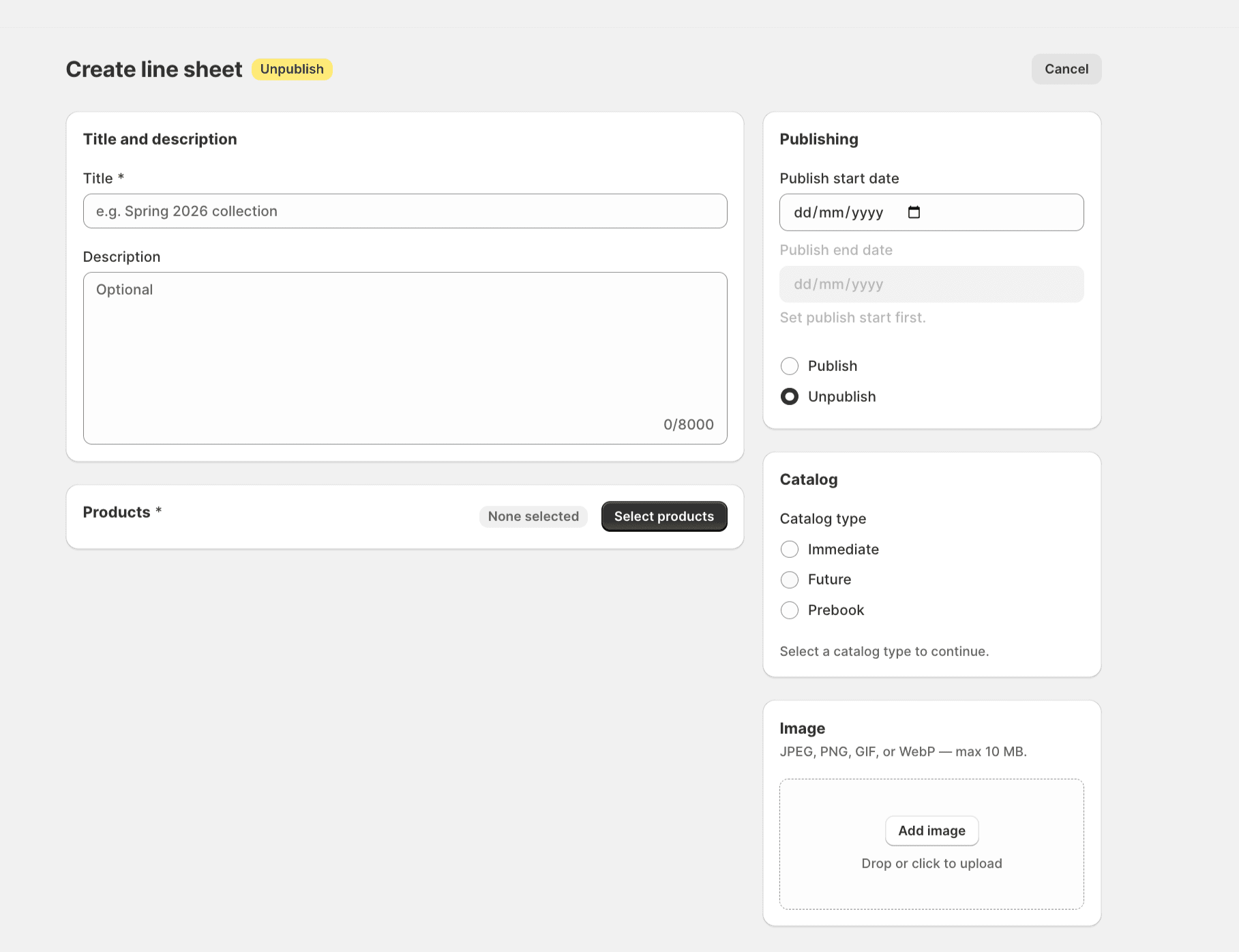
From the Line sheets list, click Add line sheet to open the create form.
Enter Basic Information
Add a Title
Required. Use a name buyers will recognize — for example, Spring 2026 Collection.
Add a Description
Optional context for your team or buyers, up to 8,000 characters.
Upload a Line Sheet Image
Optional cover image in JPEG, PNG, GIF, or WebP, up to 10 MB. The Image card shows Add image and Drop or click to upload; once an image is set, use Replace or Remove. A cover image makes catalogs easier to spot in the list and can appear in exported PDFs.
Configure Publication Settings
Publishing controls in the right-hand panel decide when buyers can see the catalog on the store:
| Setting | What it does |
|---|---|
| Publish start date | First day the catalog goes live. When creating, this cannot be in the past. |
| Publish end date (optional) | Last day the catalog is visible. Must be after the start date. Leave blank for no end date. |
| Status — Publish | Catalog is live when today falls inside the publish window |
| Status — Unpublish | Catalog is hidden from the storefront |
Publish Status: the current Publish/Unpublish state, described above.
Publish Start Date: sets when the window opens; cannot be set in the past on creation.
Publish End Date: optional; when set, must fall after the start date.
Automatic Publish and Unpublish: the app suggests a status based on the configured dates — if the start date is today or already passed, Publish is available; if the start date is in the future, the catalog stays Unpublish until that date arrives. See Publication Scheduling.
The Publishing card spells this out directly: Today → Publish available when inside the publish window (if end date is set). The Publish end date field stays disabled with the hint Set publish start first until a Publish start date has been entered.
Select a Catalog Type
Choose the catalog type (required). Your store's UI may label these ATS, Future, Booking, or All, matching the Immediate/Future/Prebook/All terms used throughout this module:
| Type | Use for |
|---|---|
| Immediate | Products available to ship now, drawing on available-to-sell inventory |
| Future | Pre-orders or products shipping on a future date |
| Prebook | Reserved or booked inventory |
| All | Every catalog type together — mix Immediate, Future, and Prebook products in one catalog |
Catalog type is presented as a set of radio buttons (Immediate / Future / Prebook / All) with none selected by default; the Catalog card prompts Select a catalog type to continue until one is chosen. See Catalog Types.
Add Products
At least one product is required — there is no fixed upper limit. Click Select products to open the product picker.
Products chosen in the picker appear in the Selected products list on the form. Each product's availability on the storefront follows its own Shopify status (Active, Draft, or Archived) in addition to the line sheet's publish window. Review picks in the Selected products list; remove items individually or use Clear all to start over.
Product picker
On the create page, click Select products; on the edit page, the same control is labeled Add or remove products. Either opens the Select products for this line sheet modal, subtitled Synced catalog · use the checkbox or click the product row, with a running No products selected / N products selected badge in the top-right corner.
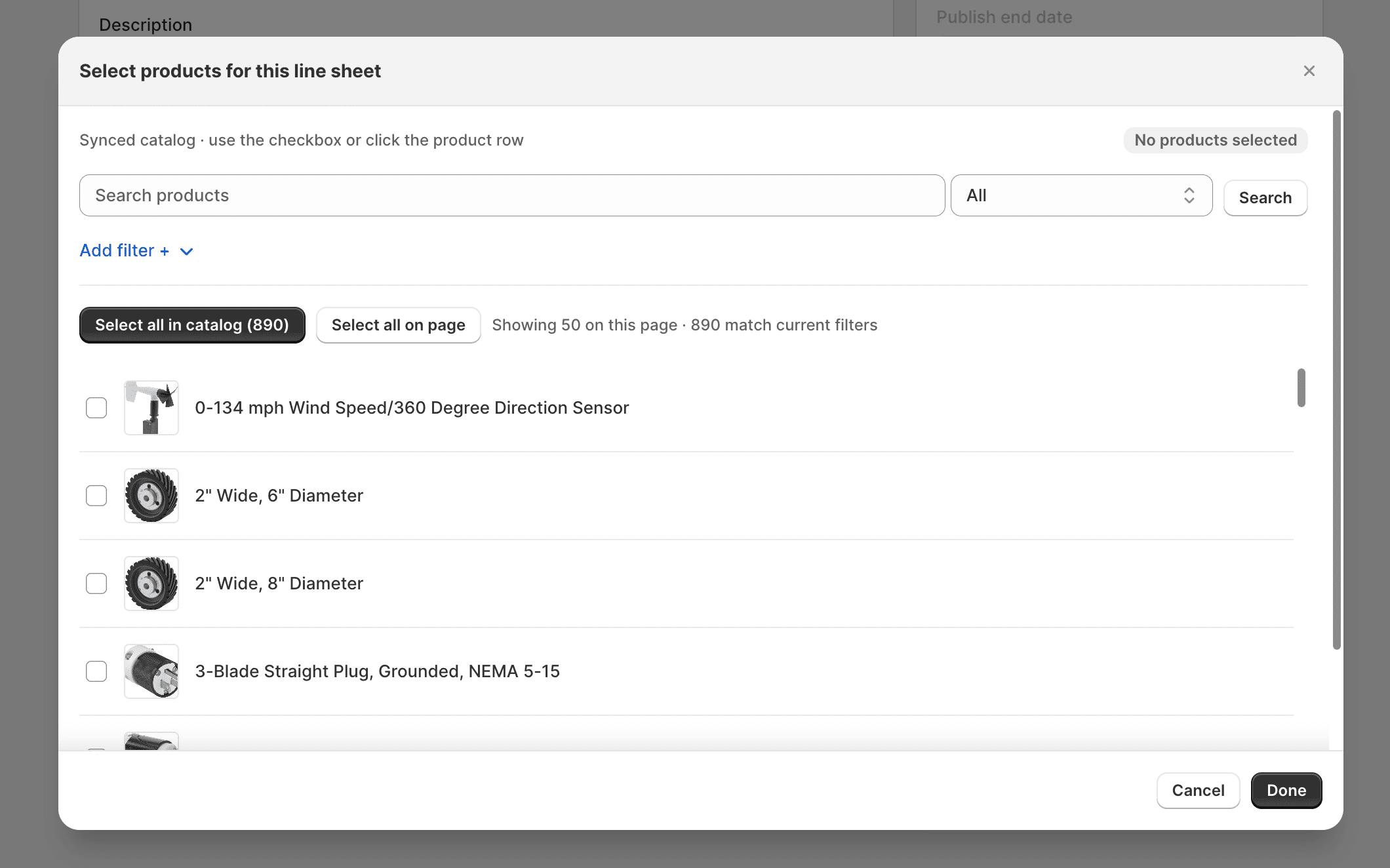
Find the right products using the search bar and filters:
| Control | Use it to… |
|---|---|
| Search products field + scope dropdown (default All) + Search button | Look up products by title, ID, barcode, or SKU |
| Add filter + | Reveal additional filters: Vendor, Product type, Status, Tag, and Line sheet |
| Vendor | Narrow by brand or vendor |
| Product type | Narrow by product category |
| Status | Show Active, Draft, or Archived products |
| Tag | Filter by Shopify product tag |
| Line sheet | See products already used in another line sheet |
Below the filters, a status line reads Showing 50 on this page · N match current filters, so it's clear whether you're looking at the full matching set or just one page of it. Two selection buttons sit above the list:
| Button | Effect |
|---|---|
| Select all in catalog (N) | Selects every product matching the current filters across the entire catalog, not just the visible page |
| Select all on page | Selects only the products currently shown (up to 50) |
Check the box on each product row to add or remove it individually. Browse with Previous and Next, 50 products per page. When done, click Cancel to close without saving changes from this session, or Done to save the selection and return to the form.
Save Your Work
Click Create line sheet (top right, or in the save bar) to save. You are taken to the detail page for the new catalog.