Inventory Availability (Based on setting)
Storefront availability depends on your Inventory Dates setting, each record's Available From/To values, and ship window defaults. Use this guide to understand how those settings control what buyers see and when they can order.
In this guide:
- Available From
- Available To
- Product Visibility
- Warehouse Overselling and Max Cap
- Inventory Scheduling
Available From
Whether an inventory record uses a single date or a start-and-end date range is controlled by the Configure Inventory Dates setting. That choice determines how availability fields behave for Future and Prebook records.
Available From is the date sellable availability begins for this record.
Available To
The date sellable availability ends, present only when Inventory Dates is set to start-and-end dates.
Product Visibility
A product/variant only appears as orderable for a given Type, warehouse, and season combination while it has sellable quantity and falls within its availability window.
Storefront display: Product Order Matrix
The Product Order Matrix on the storefront displays live inventory availability from the B2B Plus backend rather than Shopify's native inventory count. Each row represents a unique bucket defined by Season, Warehouse, Order type, and Delivery window; each column represents a product variant; and each cell shows the available quantity as a colored badge:
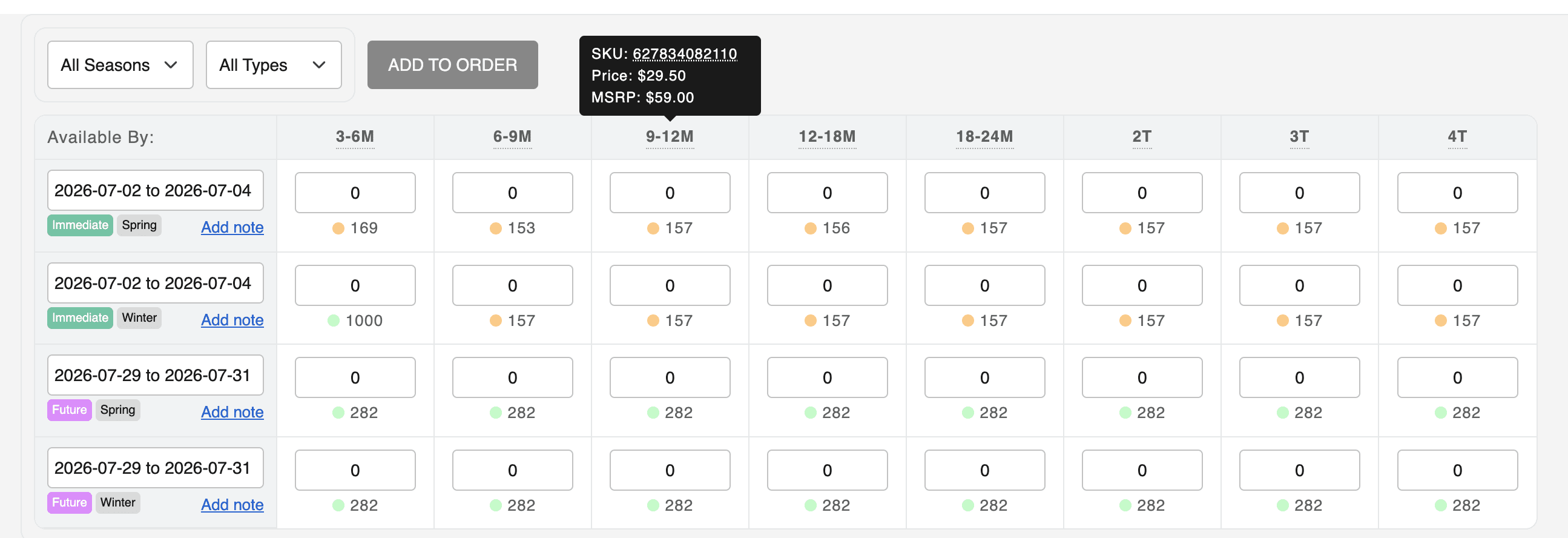
| Badge | Meaning |
|---|---|
| Green | High availability |
| Yellow | Medium availability |
| Red | Low availability |
| Gray | No inventory available; the cell is disabled |
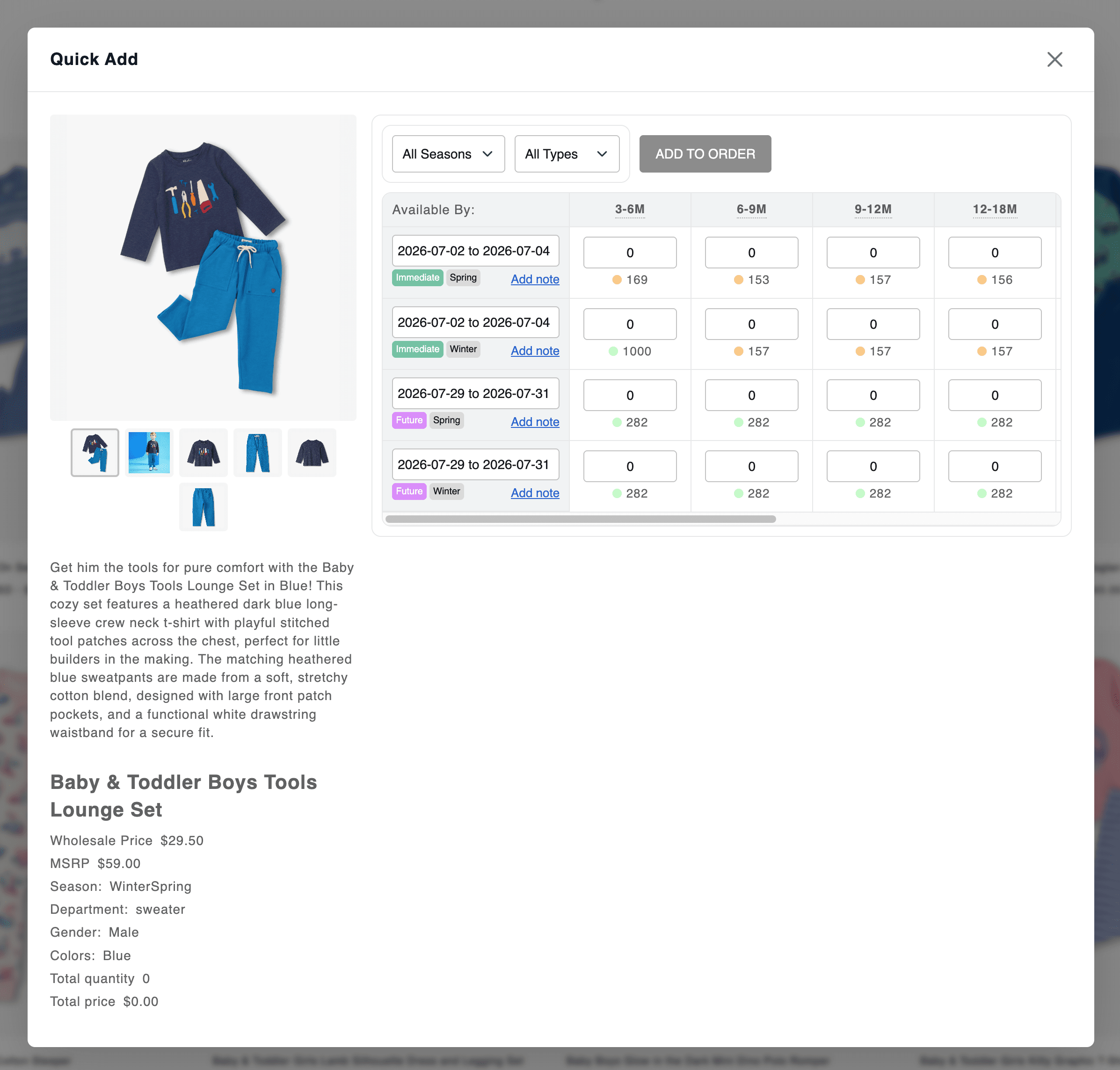
Quantity inputs are capped to available stock for Immediate and Future types, while Prebook order types allow quantities beyond currently available inventory. This same data also powers the delivery date picker and delivery window selection on the storefront, and the cart re-validates against it — clamping quantities if available inventory has decreased since the item was added, and validating again before checkout.
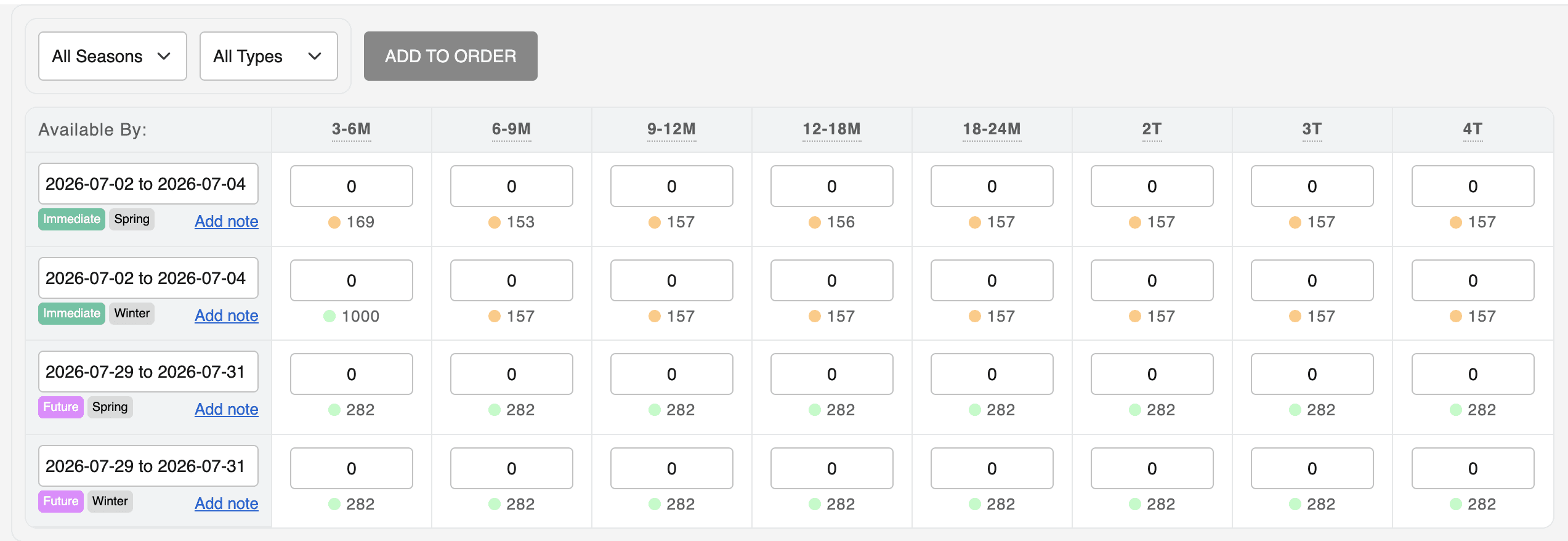
Use the matrix filters (season, warehouse, and order type) so buyers and reps only see the buckets that match their company location and order plan. Warehouse context for companies is covered in Warehouse ↔ Company Mapping.
Warehouse Overselling and Max Cap
Go to Settings → Warehouse Inventory Settings to control what happens once a warehouse runs out of stock for a SKU. The table shows one row per warehouse:
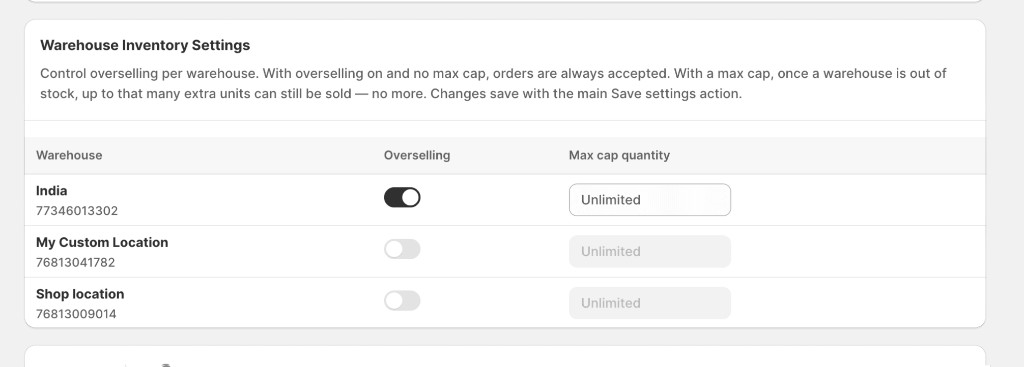
| Column | What it does |
|---|---|
| Warehouse | Location name |
| Allow overselling | When on, buyers can keep ordering that warehouse’s stock after it hits zero |
| Max cap | Only used when overselling is on. Limits how many extra units can be sold past zero. Leave blank for unlimited overselling |
Behavior:
- Overselling off (default): once available quantity at a warehouse reaches zero, buyers can no longer order more from that warehouse (unless the item is Prebook/Booking, which is always unlimited).
- Overselling on, no max cap: buyers can keep ordering with no extra limit once stock is out.
- Overselling on, max cap = N: buyers can order up to N extra units past zero. For example, a max cap of 5 means orders can push that warehouse's stock down to -5, but no further.
This applies everywhere availability is checked: the storefront Product Order Matrix, order creation/validation in the admin and storefront, and orders coming in through the ERP integration.
There is no Save button per row — edit as many warehouse rows as needed, then click the page’s main Save. Discard reverts unsaved changes.
Inventory Scheduling
Combined with the Ship Window defaults, Available From/To dates determine the shipping timeframe presented to the buyer for that line.